Variables Inspector
Use the Variables Inspector to add, remove, and edit variables used by the FSM:
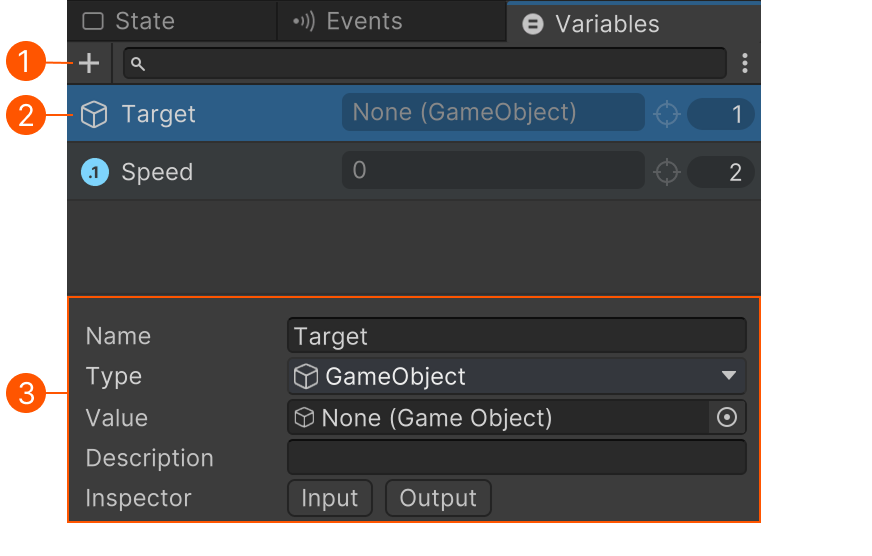
| # | Description |
|---|---|
| Add New Variable | |
| Select Variable | |
| Edit Selected Variable |
Adding Variables
- Use + Button.
- Alt or Double-click in the list view.
- Drop a GameObject or Component into the list view.
- Drop Global Variables into the list view.
- Use Add New Variable in the variable selector.
Tip
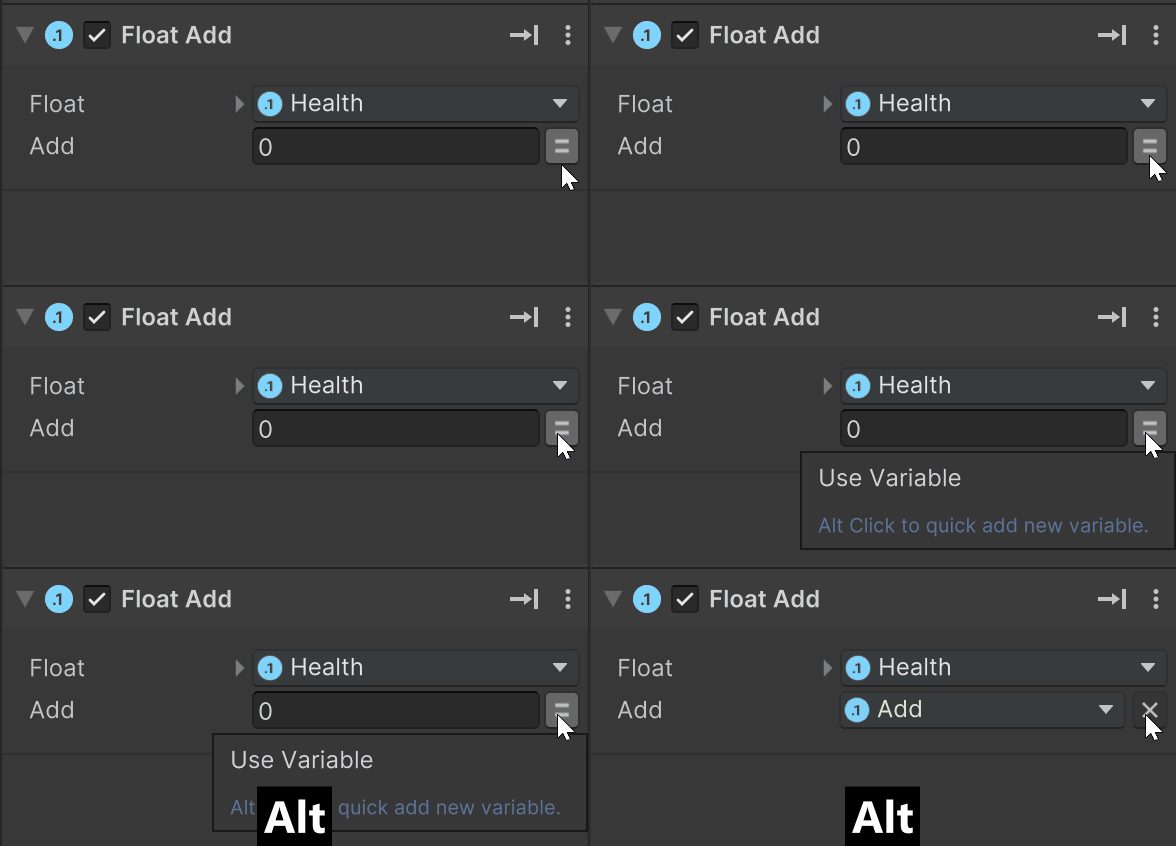
Alt+Click a variable selector to quickly make a variable:
Variables List
Use the list to organize variables:
- Drag to re-order items.
- Right click an item to add a comment or group.
- Use search to find variables.
A variable in the list shows:
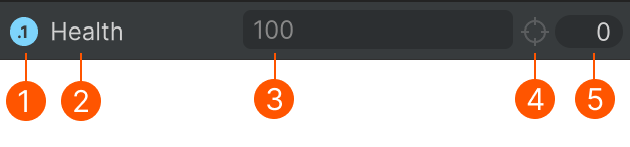
| # | Description |
|---|---|
| Type icon | |
| Variable name | |
| Current value | |
| Enable watch to debug variable values. | |
| Used count. Click to open a finder window. |
Watch variables:
- In the Graph View using the Debug Toolbar
- In the Game View using the Debug FSM component.
Variable Editor
Select a variable in the list to edit:
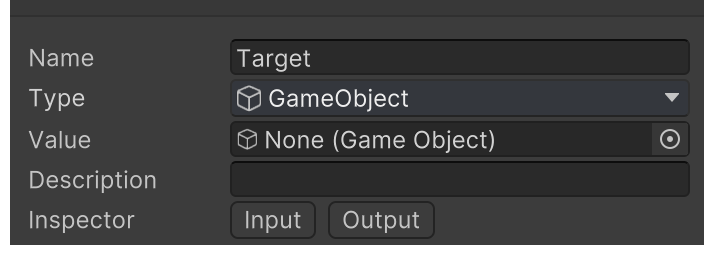
| Field | Description |
|---|---|
| Name | A name that describes what the variable is used for. Good names make it easier to understand your FSMs later! |
| Type | The type of data the variable contains. |
| Value | The default value. While playing this shows the current value. |
| Description | A short description of how to use the variable. Used in tooltips. |
| Save Mode | Uses the Save System to save/load variables. |
| Inspector | Toggle Input and Output flags. |
Exposing Inputs and Outputs
Select the variable to edit and find the Inspector settings:
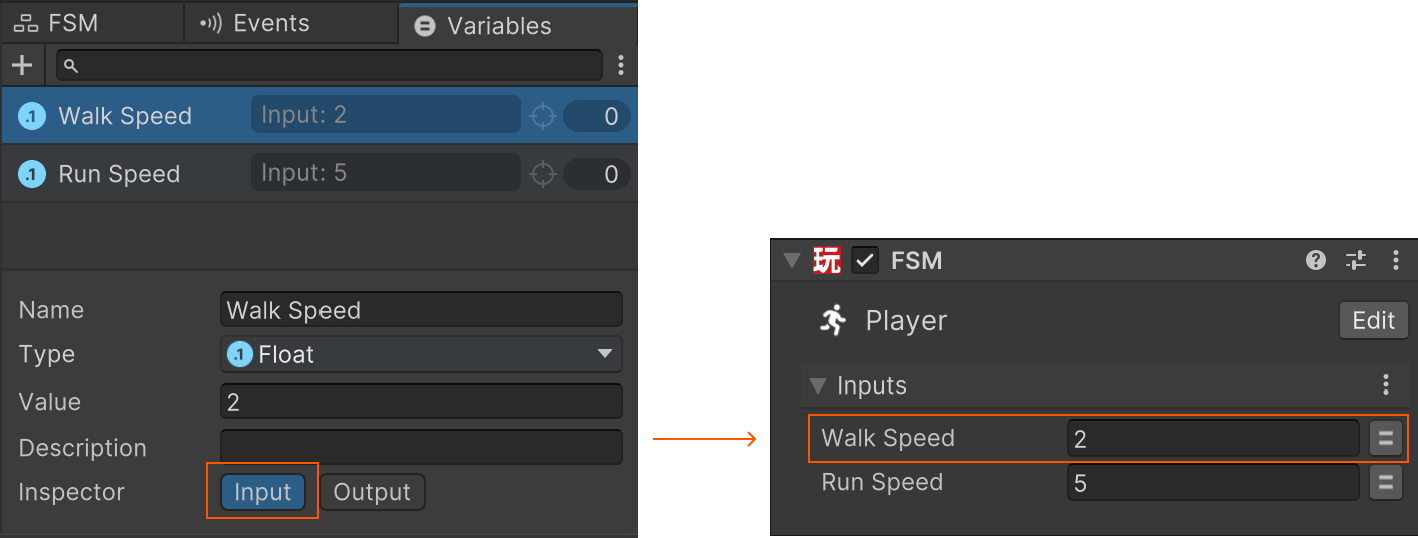
Inputs and Outputs are shown in the FSM Component, FSM Template Component, and in any action that runs FSM Templates, for example, the Run Template Action.
Use the FSM Node Inspector to control how the inputs/outputs appear in other inspectors. You can re-order them, add comments, groups, etc.
Shortcuts
Double-click a variable in the list to edit and focus the name field.
Ctrl or Double-click empty area to add a new variable.
Ctrl Click tab to open a new FSM Variables window.