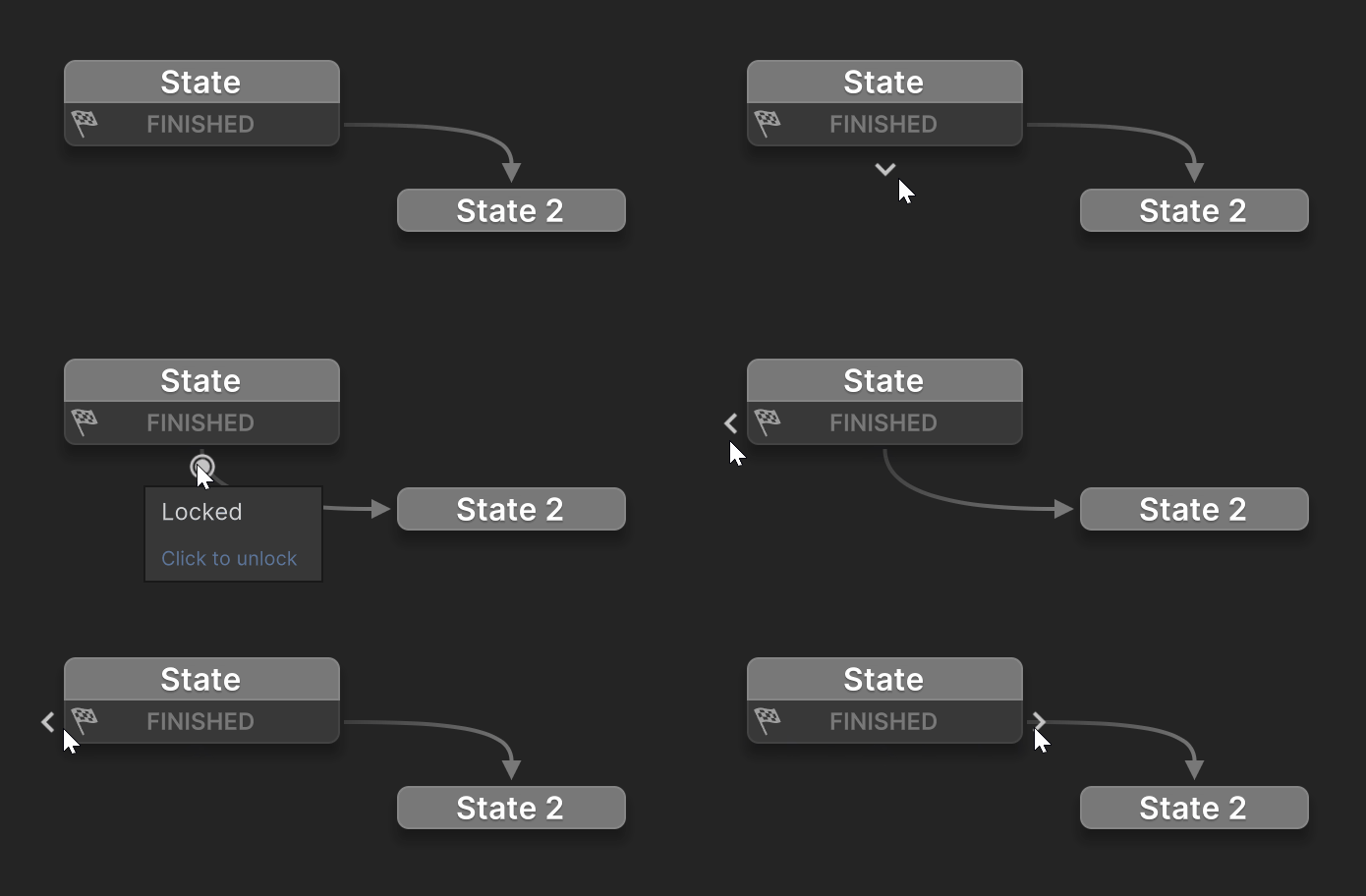
Transition Node
A Transition Node represents a connection from one state to another in the FSM.
After adding a transition, you can:
- Double-click to set the event.
- Drag a link to another state.
Local Transition
A Local Transition connects one state directly to another state within the FSM.
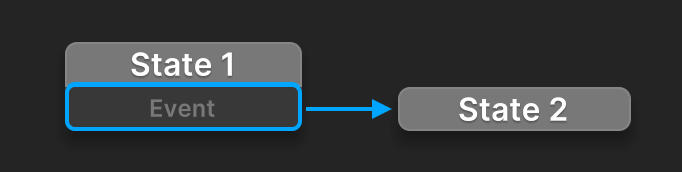
This example shows a transition from State 1 to State 2, triggered by Event.
Global Transition
A Global Transition belongs to the parent state (or FSM if at the top level) and can transition to any state within the same region.
It appears free-floating in the graph but is contained within its parent, similar to an AnyState transition.
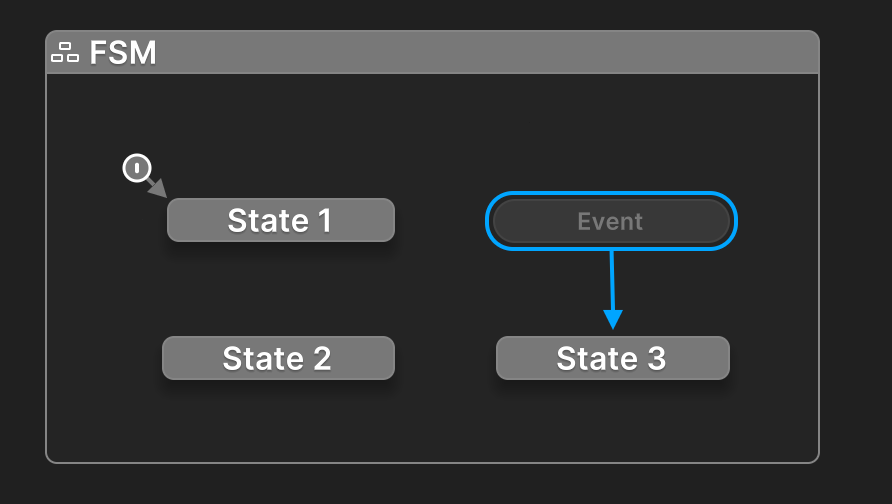
This example shows a transition from the parent FSM to State 3, triggered by Event.
In other words, the FSM will transition to State 3 from any active state - State 1, State 2, or even State 3 itself.
Hint
Global transitions are useful for reducing the number of explicit transitions between states.
This keeping the graph view tidier and easier to edit.
Context Menu
Right-click the transition node to open its context menu:
| Command | Description |
|---|---|
| Select Transition Event | Select the event that triggers the transition. |
| Clear Target State | Remove the link to the target state. |
| Attach to Target | Attach a global transition to its target state. |
| Move Up | Move the transition up in the list of local transitions. |
| Move Down | Move the transition down in the list of local transitions. |
| Delete | Delete the transition. |
| Link Settings | Open visual settings for the link. |
Inspector
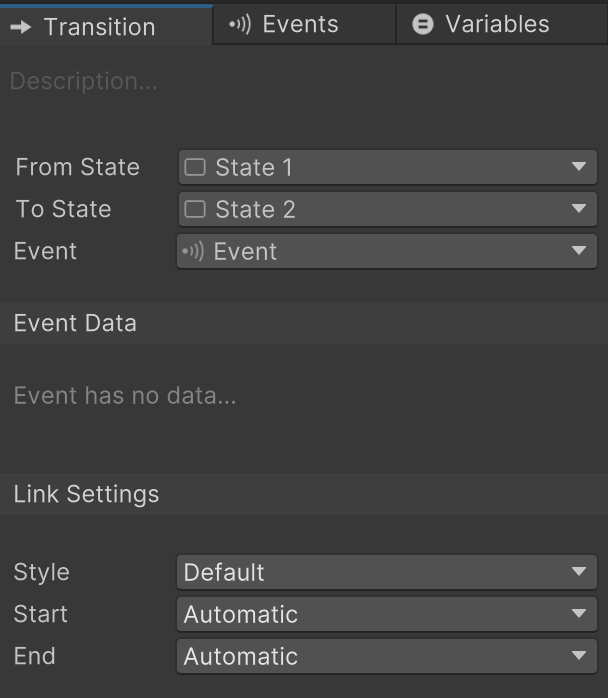
Transition
| Control | Description |
|---|---|
| Description | Click to edit the transition description. |
| From State | The state the transition starts from. |
| To State | The state the transition leads to. |
| Event | The event that triggers the transition. |
| Event Data | Displays any data sent with the event. |
Event Data
View or retrieve any data sent with the event here:
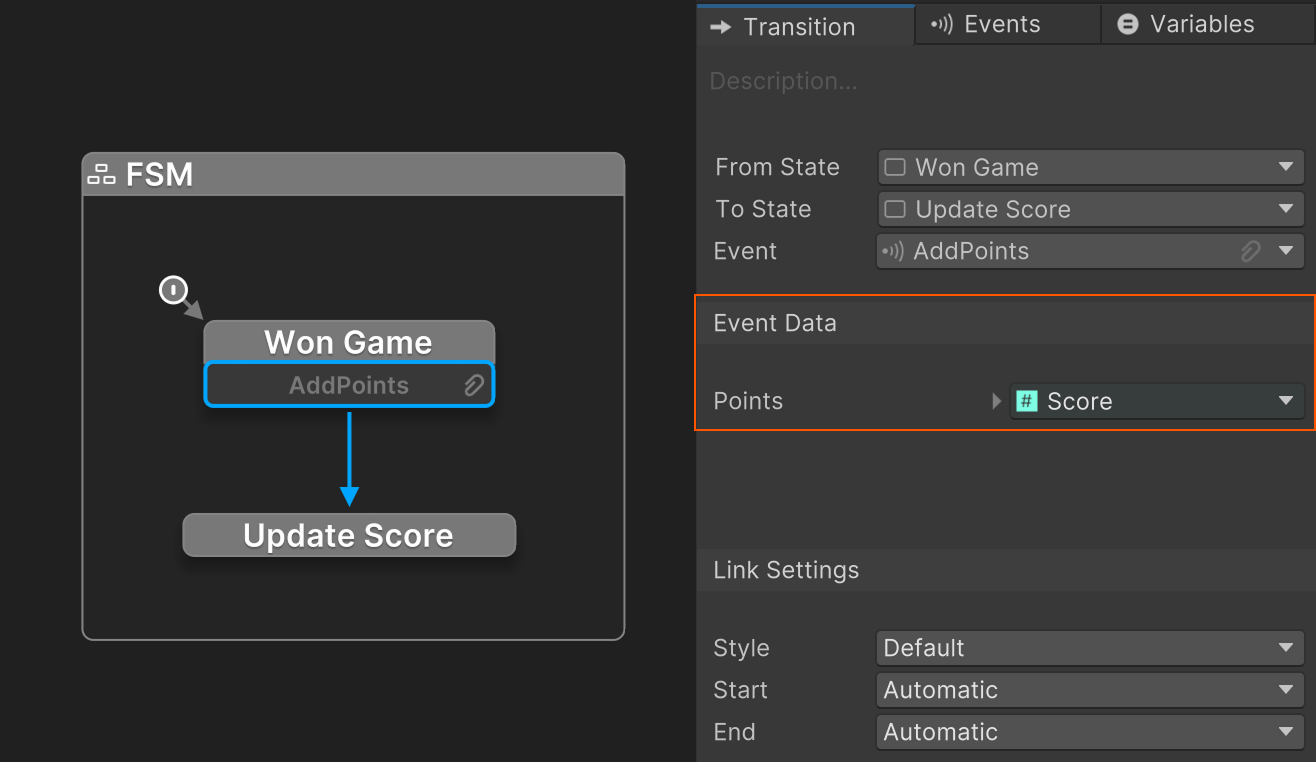
Many system events include data - for example, collision events provide details about the collision.
Use the Events Inspector to add data to custom events.
Event Data Icon
Events that include data show a icon.
Link Settings
Control the visual style of the transition link:
| Setting | Description |
|---|---|
| Style | Select the style used to draw the link. |
| Start | Lock the start anchor position. |
| End | Lock the end anchor position. |
See also: Locking Link Shortcuts
Shortcuts
Use these shortcuts to edit and test transitions directly in the Graph View.
| Shortcut | Action |
|---|---|
| Double Click | Open an Event Selector to select the transition event. |
| Up / Down | Select the previous or next transition. |
| Alt+Up / Alt+Down | Move the selected transition up or down. |
| Alt+Drag | Alt-drag from a transition to quickly create and connect a new target state.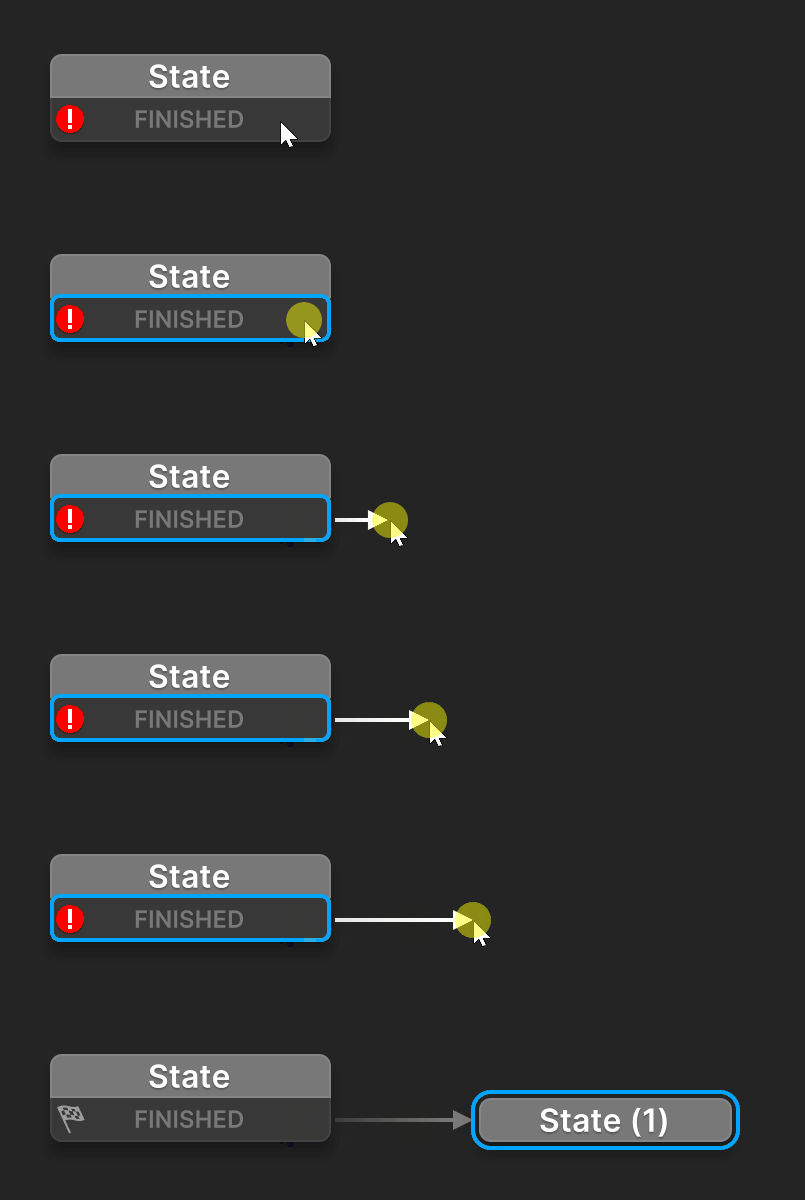 |
| Shift+Click | Shift-click a transition to send its event while playing (useful for testing).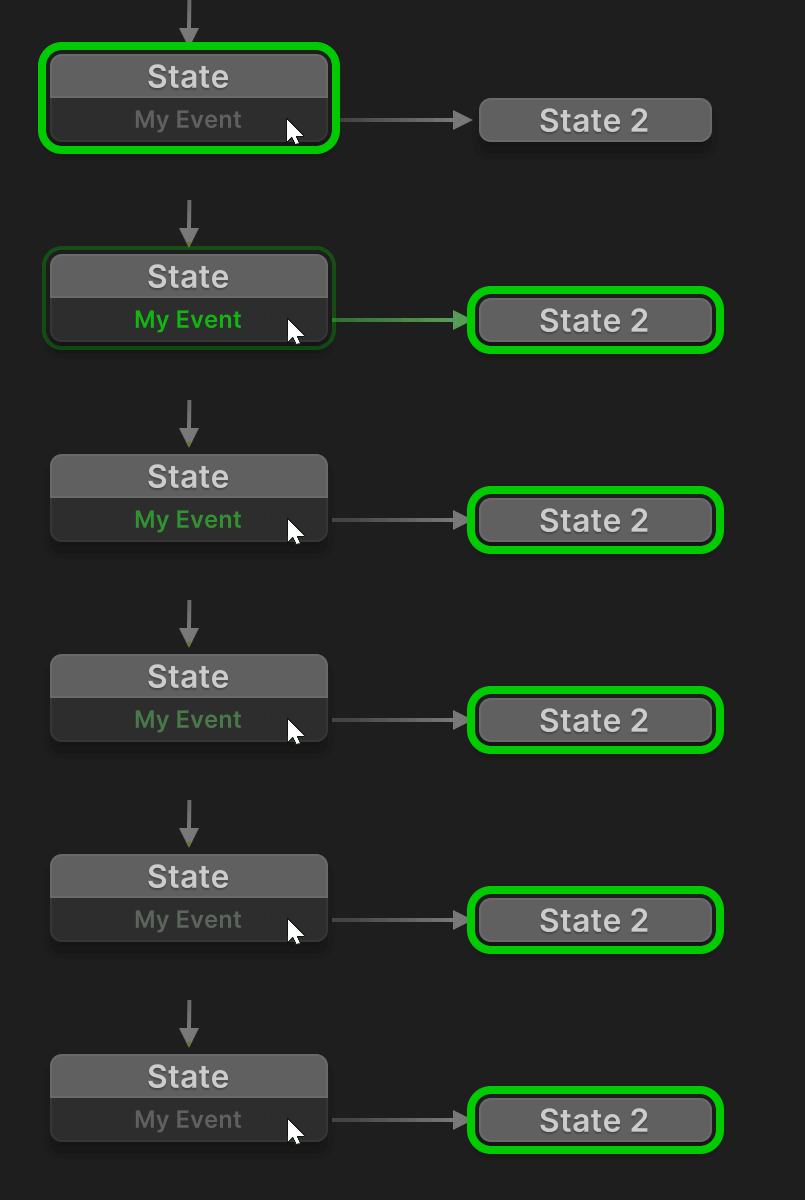 |
Locking Links
| Shortcut | Action |
|---|---|
| Ctrl+Arrow Key | Lock the link start direction (left/right/bottom). |
| Ctrl+/ | Reset the link start to automatic. |
| Ctrl+Alt+Arrow Key | Lock the link end direction (left/right/top/bottom). |
| Ctrl+Alt+/ | Reset the link end to automatic. |
Click the drag arrows to lock or unlock the anchor position.