Graph View
Build and debug behaviors visually using nodes in the Graph View:
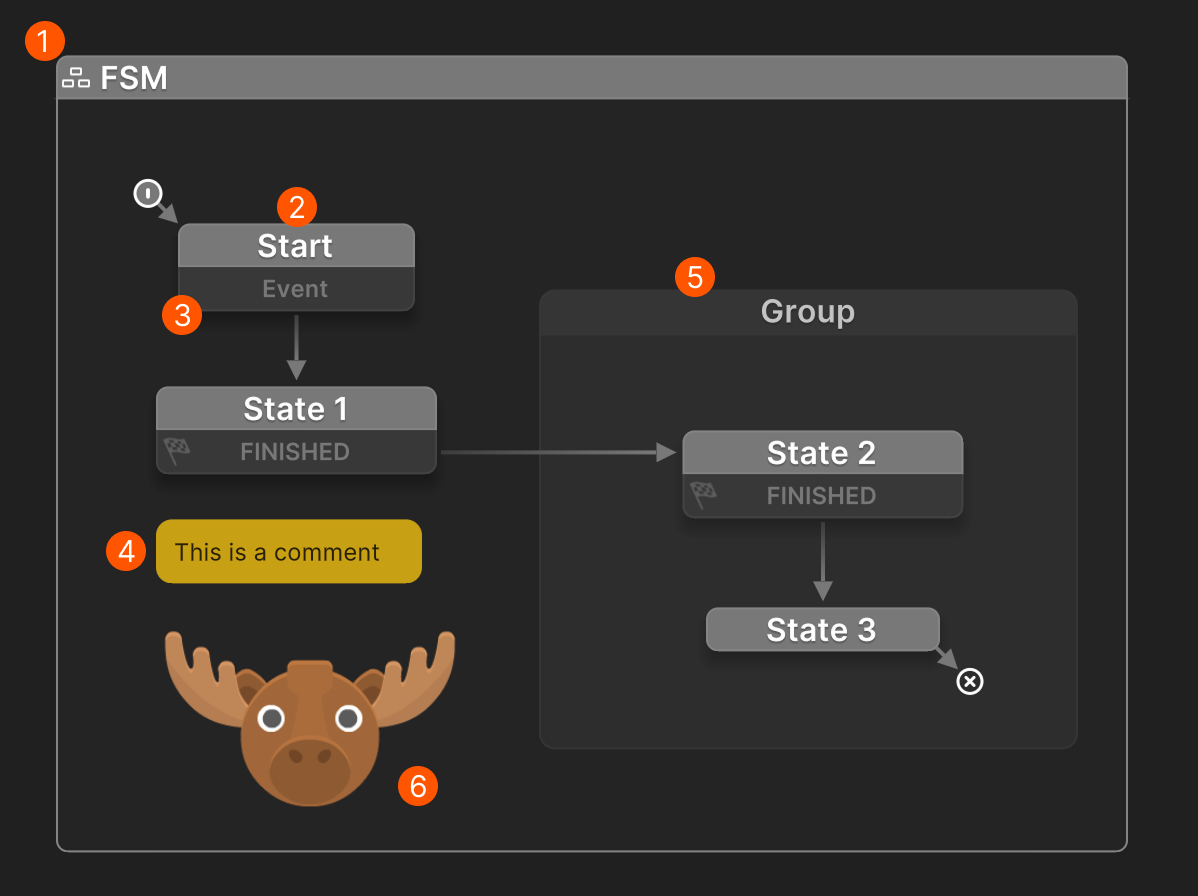
Right click the canvas to add nodes:
| # | Node | Description |
|---|---|---|
| FSM | The top-level container that defines a Finite State Machine. | |
| State | A unit of behavior that runs actions and responds to events. | |
| Transition | Moves from one state to another in response to an event. | |
| Comment | Use to annotate your graph with helpful notes. | |
| Group | Organize related states visually. Resize to include nodes. Drag nodes out to un-group. | |
| Image | Display reference images to aid design. Images are not included in builds. |
Navigation
Middle-mouse-drag to pan the view.
Use your mouse wheel to zoom in and out.
Selecting Nodes
Click or Drag a marquee to select nodes.
Ctrl to add/remove item in the selection.
Moving Nodes
Drag already selected nodes to move them. The view auto-scrolls when you drag near edges.
Snapping guides help you position nodes relative to other nodes. Hold Shift to override the current snapping mode.
Resizing Nodes
Resizable nodes can be resized by dragging their frames. A resizing cursor will indicate when this is possible.
Some resizable nodes have a context menu option to "Fit Contents." Use this to auto size the node to its contents.
Inspector
Select a node to view and edit its properties in the Inspector.
Each node type has its own set of inspector options. See the following pages:
Right-click everything!
Many nodes have right-click context menus with useful shortcuts and actions.
Shortcuts
Navigation
| Shortcut | Action |
|---|---|
| A | Frame all nodes. |
| F | Frame selected nodes. Frames all nodes if none are selected. |
| Home | Select and frame the Start State. |
| Page Up | Select parent node. E.g. select a transition's parent state. |
| Page Down | Select child node. E.g., select first transition in a state. |
| Left Right Up Down |
Select closest node in that direction. |
Creating FSMs and States
| Shortcut | Target | Action |
|---|---|---|
| Alt+Click | Empty Graph | Add a new PlayMaker FSM to the selected GameObject. If no GameObject is selected, a new one is created and the FSM added to it. |
| Alt+Click | Canvas | Add a new state. |
| Alt+Click | State | Add a transition. |
| Alt+Drag | Transition | Drag from a transition to create a new target state. |
Editing Nodes
| Shortcut | Action |
|---|---|
| Ctrl+A | Select all nodes. |
| Ctrl+C | Copy selected nodes. |
| Ctrl+X | Cut selected nodes. |
| Ctrl+V | Paste copied nodes. |
| Ctrl+D | Duplicate selected nodes. |
| Double Click | Edit the node’s name. |
Drag Focus
While dragging items, hover over an editor tab or node to focus it.
This makes it easier to drag and drop between nodes.