Editor Nodes
Use editor nodes to organize and document your FSMs.
Note
Editor nodes don't change the behavior of the FSM and are excluded from builds.
Group Node
Use Group nodes to visually organize related nodes in your FSM.
Any node placed inside a Group node is considered part of that group. You can resize the Group node or drag nodes in and out to adjust group membership.
If you lock the group:
- The group cannot be moved or resized.
- Contained nodes cannot be moved.
- Nodes cannot be dragged into the group.
You can use this to protect regions of the graph from accidental changes.
To unlock the group, right click and select Unlock Group
Comment Node
Use Comment nodes for quick, in-line notes or reminders within your FSM.
Comments also support Markdown syntax for more structured documentation, with headers, lists, links, etc.
Image Node
Image nodes are useful for adding diagrams, screenshots, or reference images, making it easier to communicate ideas and workflows visually.
Settings
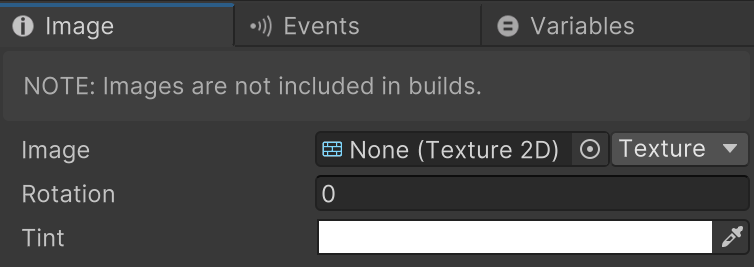
| Field | Description |
|---|---|
| Image | The image asset shown in the node. You can drag and drop an asset into the field or onto the node. |
| Image Type | The asset type used by the image field: Texture, Sprite, VectorImage, or RenderTexture. This controls which object type the picker accepts. |
| Rotation | Rotates the displayed image in the node preview. |
| Tint | Applies a color tint to the displayed image. White keeps the original colors. |
Render Node
Use Render nodes to render a camera view on the canvas.
This can be a powerful debugging tool:
- See what an enemy AI is seeing.
- Follow the player from a dedicated third person camera.
- Examine captured moments when you pause and step through prev/next states.
Settings
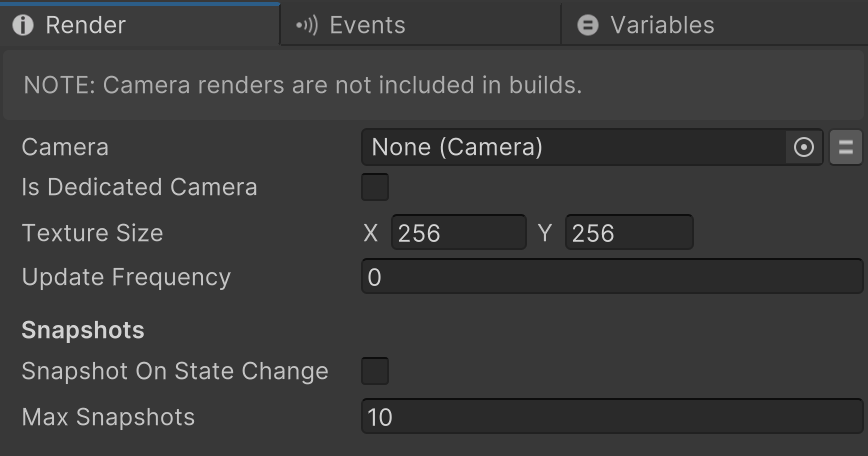
| Field | Description |
|---|---|
| Camera | The camera to render in the node preview. For dedicated debug cameras, disable the Camera component in the Inspector and let the node render it. |
| Is Dedicated Camera | Temporarily enables the selected camera to render, then restores its previous enabled state. Use this when the camera is only for the Render Node view. |
| Texture Size | The width and height of the render texture (default 256 x 256). Larger sizes look sharper but use more memory and rendering time. Power-of-2 sizes are recommended (for example 256, 512, 1024). |
| Update Frequency | How often the camera is rendered. 0 = every frame, 1 = every other frame, higher values update less often to reduce cost. |
| Snapshot On State Change | Captures the current render texture each time the FSM changes state. Useful when stepping backward and forward through debug history, but can be expensive. |
| Max Snapshots | Maximum number of snapshots kept in memory (default 10). Older snapshots are automatically removed when the limit is reached. |