FSM Editor
PlayMaker → FSM Editor
The FSM Editor is divided into 4 main areas:
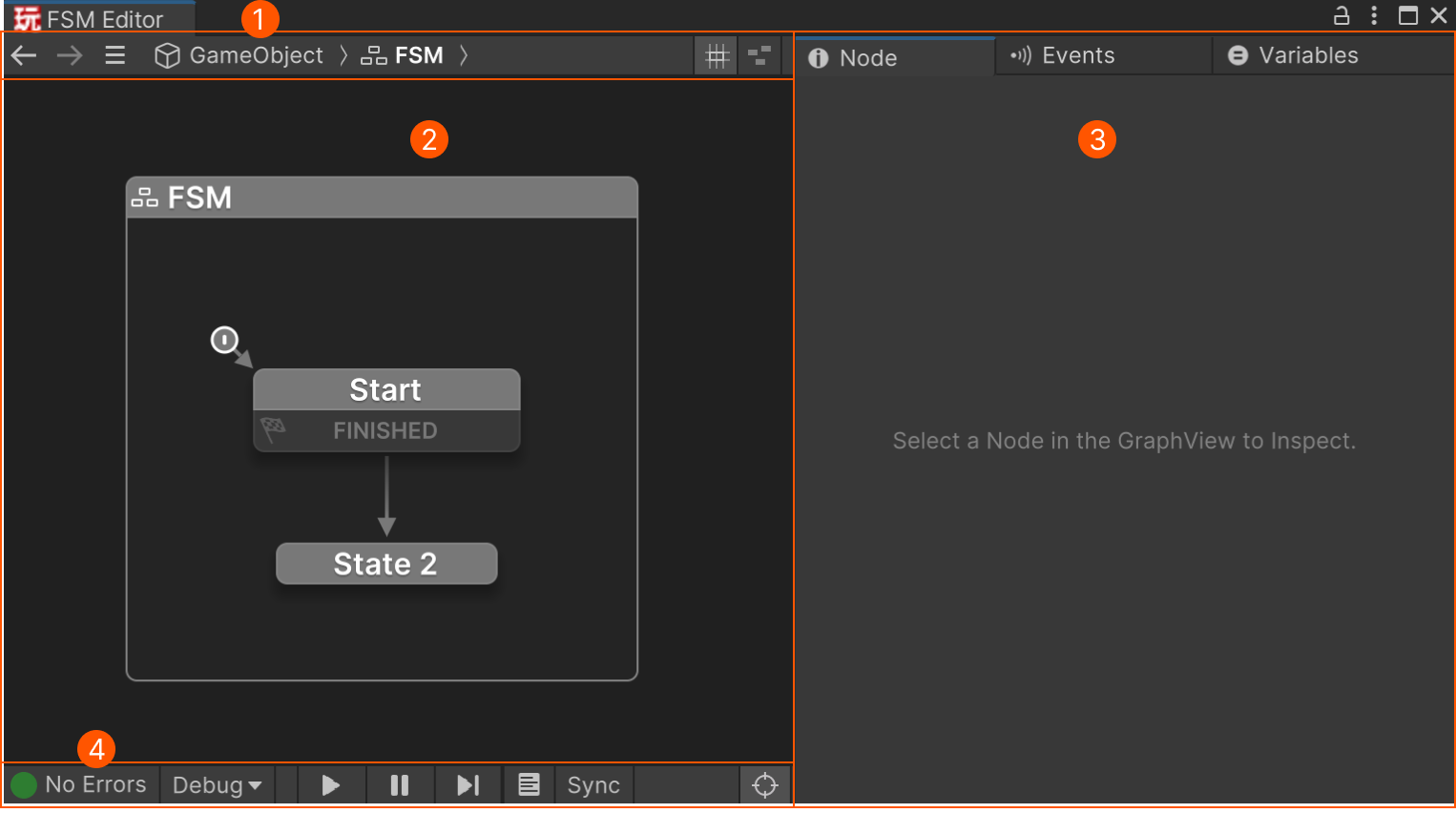
| # | Area | Description |
|---|---|---|
| Selection Toolbar | Quickly select and navigate between FSMs. | |
| Graph View | Build and visualize the FSM flow. | |
| Inspector | View and edit the selected node’s properties. | |
| Debug Toolbar | Play, pause, and step through FSM logic. |
Opening an FSM in the Editor
You can open an FSM in the FSM Editor in several ways:
- Click Edit in an FSM Inspector.
- Select an FSM in the Finder window.
- Double-click an FSM Template asset.
- Click a template in the FSM Template Browser.
- Use the Selection Toolbar to navigate between FSMs you've opened recently.
Shortcuts
You can dock the FSM Editor like any other Unity window and open multiple editors side-by-side.
Ctrl+Click Edit to open the FSM in a new FSM Editor window.
Check hints in Tooltips for other shortcuts.
Locking the Selection
Click the Lock button to keep the current FSM visible in the FSM Editor, even if you select another GameObject.
This is useful when you want to:
- Compare or view multiple FSMs side-by-side.
- Drag and drop variables or objects from the Scene or Project views.
- Copy or move actions between FSMs.
Popup FSM Editor
When you open the FSM Editor as a popup (e.g. by editing a template from an action), it is locked by default.