Debug FSM
Add Component > PlayMaker > Debug FSM
Use the Debug FSM component to debug FSMs in the Game View.
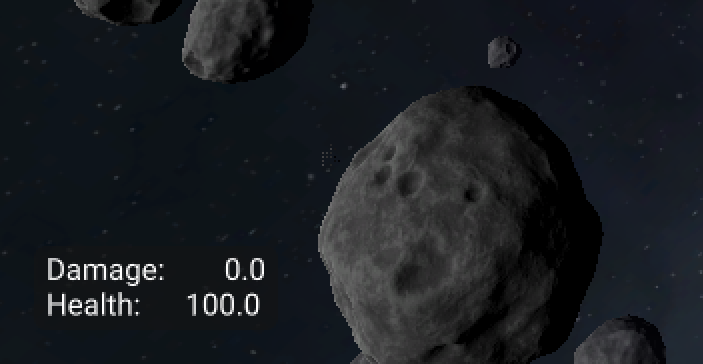
Attach debug panels to GameObjects or Screen anchors and choose what information to show in each panel. The system automatically stacks panels from different Debug FSM components.
Hint
Use PlayMaker Settings → Debug panel scale to scale the text size.
Inspector
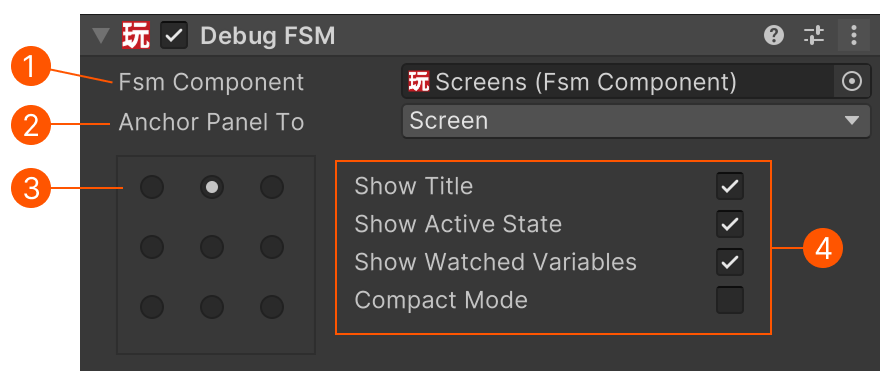
| # | Control | Description |
|---|---|---|
| FSM Component | The FSM Component to debug. | |
| Anchor Panel To | Anchor the debug panel to the Screen or a GameObject. | |
| Anchor Grid | The anchor position. With Screen selected, this represents the screen edge/corner to anchor to. | |
| Debug Toggles | Toggles to enable/disable specific debug info. |
Debug Toggles
Show Title
Show the GameObject/FSM name.
This is useful when you're debugging multiple FSMs in a single panel.
Show Active State
Show the current state of the FSM.
Note, this can be multiple lines, if multiple regions are active.
Show Watched Variables
Show variables that have Watch enabled in the Variables Inspector.
Compact Mode
Show info in compact form:
- Omit regions with a single state
- Omit parent states
- Prefer shorter labels
GameObject Anchors
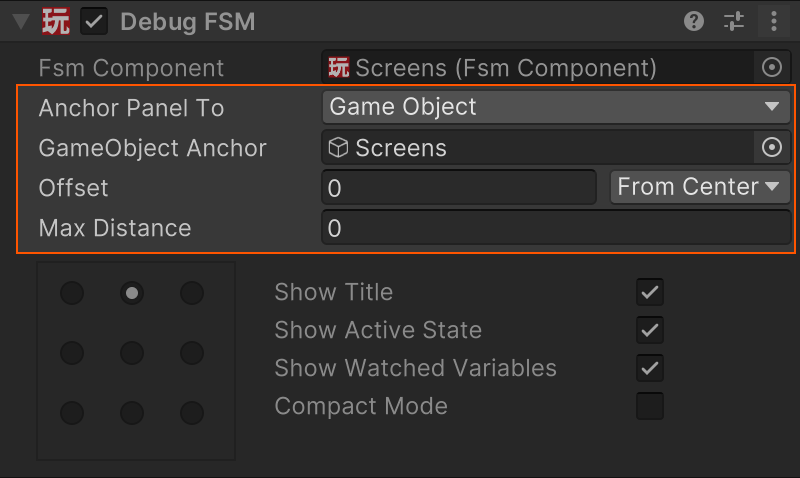
Selecting GameObject as the anchor offers more options:
GameObject Anchor
The GameObject to anchor to. By default this is the same GameObject as the FSM Component, but you could use any GameObject.
For example, you could use a GameObject to collect related debug info from multiple Debug FSM components.
Offset
Optional offset from the anchor position as a percentage of screen size.
- From Center: Offset from the GameObject's screen position.
- From Bounds: Offset from the GameObject's screen bounds - more accurate, but more expensive than Screen Position. Convenient if you want to make sure that debug information does not obscure the GameObject.
Max Distance
Maximum distance in world units for displaying debug info.
Objects beyond this distance will not show debug information.
Set to 0 for unlimited distance.
Settings
To disable all debug displays uncheck: