Selection Toolbar
Use the Selection Toolbar to quickly navigate FSMs:
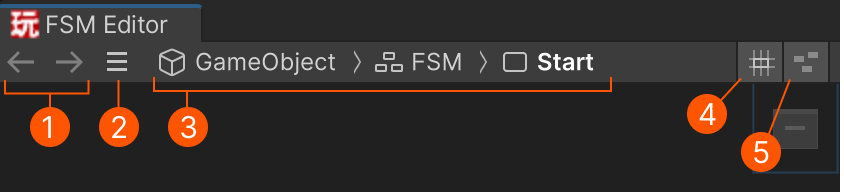
| # | Control | Description |
|---|---|---|
| Previous/Next FSM | Move forward/back through the selection history. Right-click to select from a list of previous/next FSMs. |
|
| Recent FSMs | Select an FSM from a list of recently selected FSMs. | |
| Selection Path | Shows the path to the selected node as breadcrumbs | |
| Snapping | Toggle node snapping on/off. | |
| Minimap | Toggle the minimap on/off. Right click for options. |
Locking the selection
Use Lock to keep the current FSM selected in the FSM Editor even when selecting other GameObjects or assets.
Editing Templates
Use the "Previous FSM" button to jump back to the root FSM after editing a nested Template.
Breadcrumbs
Shows the hierarchy from the GameObject to the currently selected node.
For example: MyObject > FSM > State
Click any part of the path to select it.
Click the icon to select child nodes.
Click Open Prefab to edit the prefab parent of a prefab instance.
Snapping
Snapping lets you quickly align dragged nodes to other nodes in the graph.
Hold Shift while dragging to temporarily enable or disable snapping while dragging nodes, depending on the current toggle state.
Minimap
Click/drag in the minimap to quickly move around the graph.
Shortcuts
Quickly switch between FSMs you've recently opened:
Ctrl+[ to select previous FSM.
Ctrl+] to select next FSM.
Customize Shortcuts
Prev/next FSM shortcuts can be customized in the Unity Shortcuts Window.
Select the PlayMaker category to see all customizable shortcuts.