Events Inspector
Use the Events Inspector to add, remove, and edit events used by the FSM:
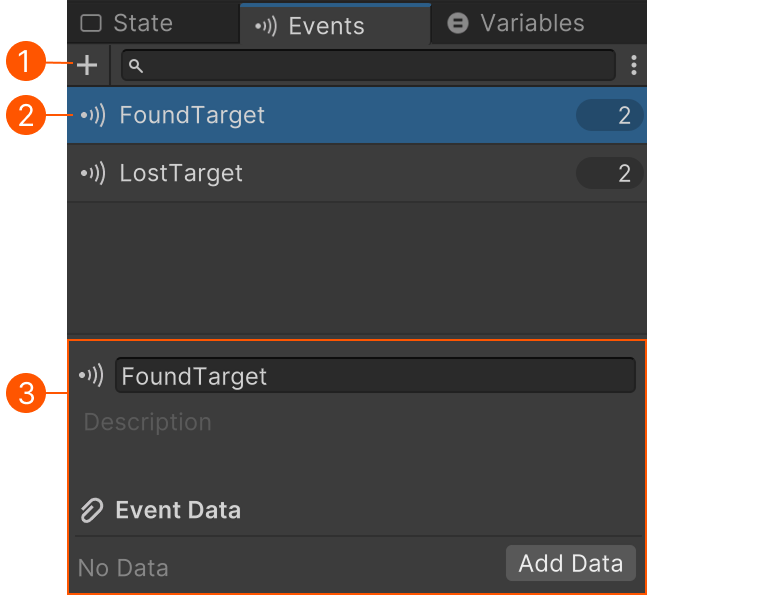
| # | Description |
|---|---|
| Add New Event | |
| Select Event | |
| Edit Selected Event |
Adding Events
- Use + Button.
- Alt or Double-click in the list view.
- Drop Global Event into the list view.
- Use Add New Event in the event selector.
Events List
Use the list to organize events:
- Drag to re-order items.
- Right click an item to add a comment or group.
- Use search to find events.
An event in the list shows:
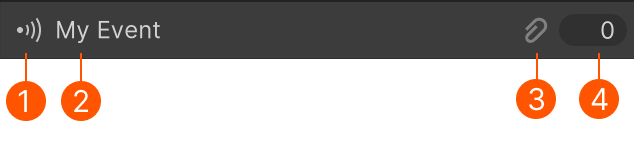
| # | Description |
|---|---|
| Event type icon | |
| Event name | |
| Indicates if the event has data | |
| Used count. Click to open a finder window. |
Event Editor
Select an event in the list to edit:
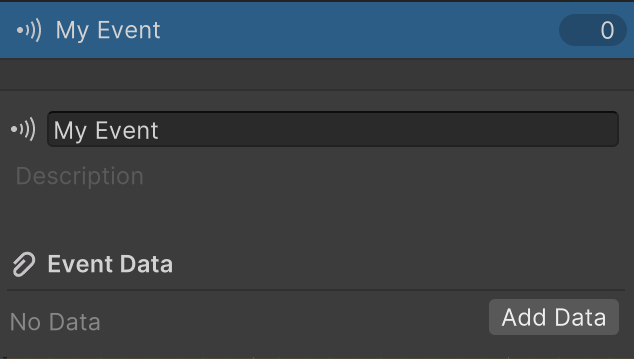
| Control | Description |
|---|---|
| Icon | Click to select an icon style. |
| Name | A name that describes what the event is used for. Good names make it easier to understand your FSMs later! |
| Description | A short description of how to use the event. Used in tooltips. |
Event Data
Click Add Data to add data or Remove Data to remove data.
Edit the name, type, and description for the event data:
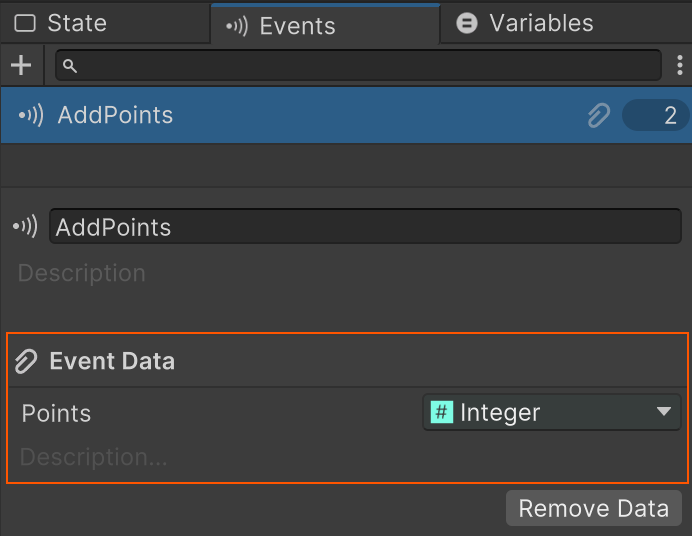
Setting Event Data
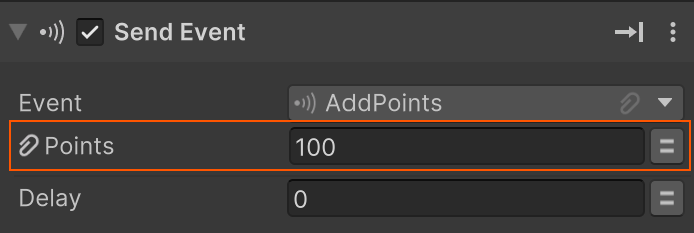
Set event data in the action that sends the event:
Getting Event Data
Get the event data in the Transition Inspector:
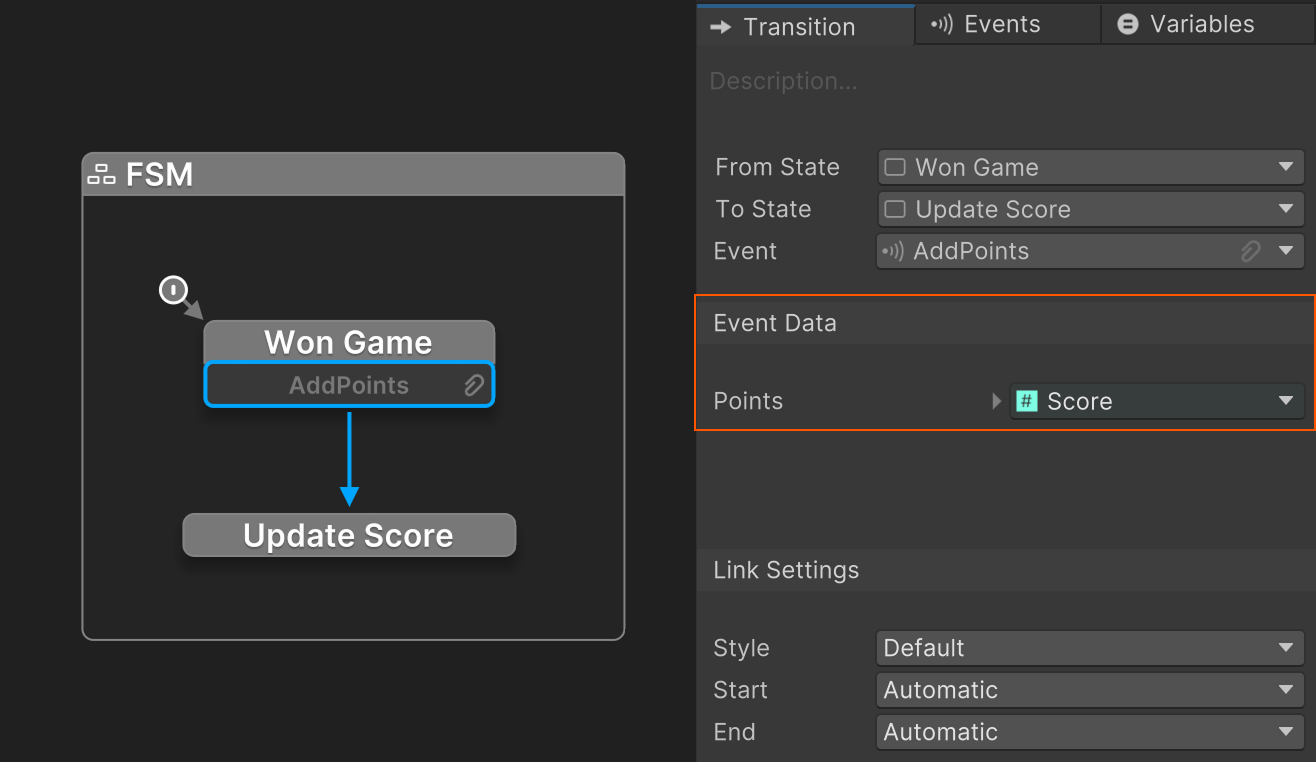
Events that have data show a icon.
Shortcuts
Double-click an event in the list to edit and focus the name field.
Ctrl or Double-click empty area to add a new event.
Ctrl Click tab to open a new FSM Events window.