PlayMaker FSM
Add Component > PlayMaker > PlayMaker FSM
The FSM Component is how you attach a Finite State Machine (FSM) directly to a GameObject in your scene.
This is the most common way to use FSMs in PlayMaker - especially for unique, per-object behavior that doesn't need to be reused.
Inspector
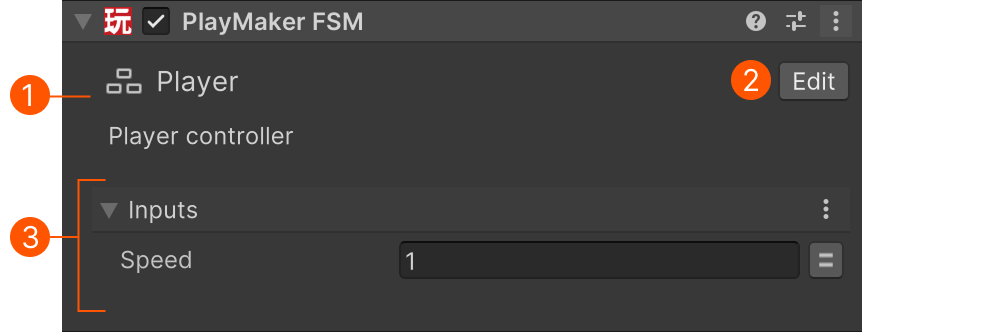
| # | Control | Description |
|---|---|---|
| Header | Edit the FSM’s icon, name, and description. | |
| Edit | Open the FSM in the FSM Editor. | |
| Inputs | Shows variables marked as Input in the Variables Inspector. Input values are passed in when the FSM starts running. |
Play Mode
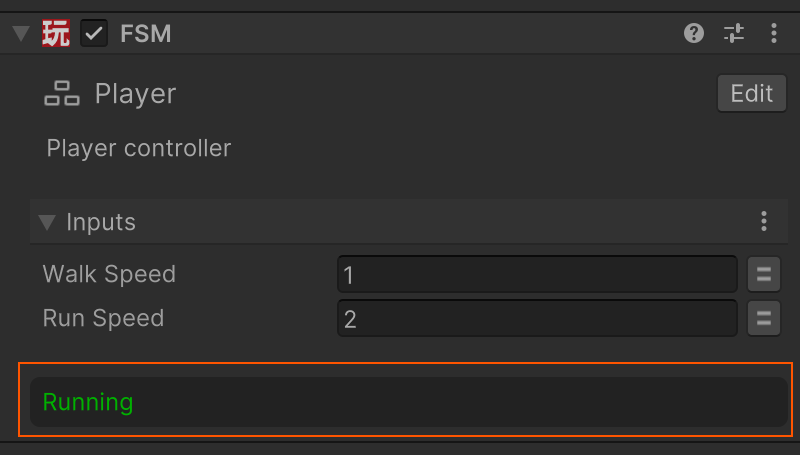
While playing, the inspector shows the currently active state:
Settings Menu
These options are added to the component's context menu:
| Command | Description |
|---|---|
| Enable Logging | Enable or disable logging to the FSM Log. Logging adds overhead in the editor. Use this to disable logs on performance-sensitive FSMs. |
| FSM Info | Opens an FSM Info window with metadata about the FSM. |
| Save as Template | Saves the FSM to a reusable FSM Template. You’ll be prompted to convert this component into an FSM Template Component that uses the saved template. |
Performance Tip
If an FSM Component is spawned many times (e.g., hundreds of bullets or enemies), disabling logging can reduce overhead and improve performance in the editor (logging is disabled in builds).
Working with Prefabs
FSM Components work well on prefabs - but there are some important limitations to keep in mind:
- Unity prefabs cannot store references to scene objects.
- This means FSMs on prefabs can't reference other objects in the scene directly.
- ✅ You can reference objects inside the prefab’s own hierarchy.
🔗 See Referencing Scene Objects for strategies to find or receive scene objects at runtime.
When to Use
Use an FSM Component when:
- The FSM behavior is unique to a specific GameObject.
- You don’t need to reuse the FSM logic across multiple GameObjects.
- You’re rapidly prototyping directly in the scene.