State Node
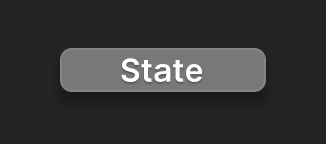
A simple state node:
A state can have sub-states:
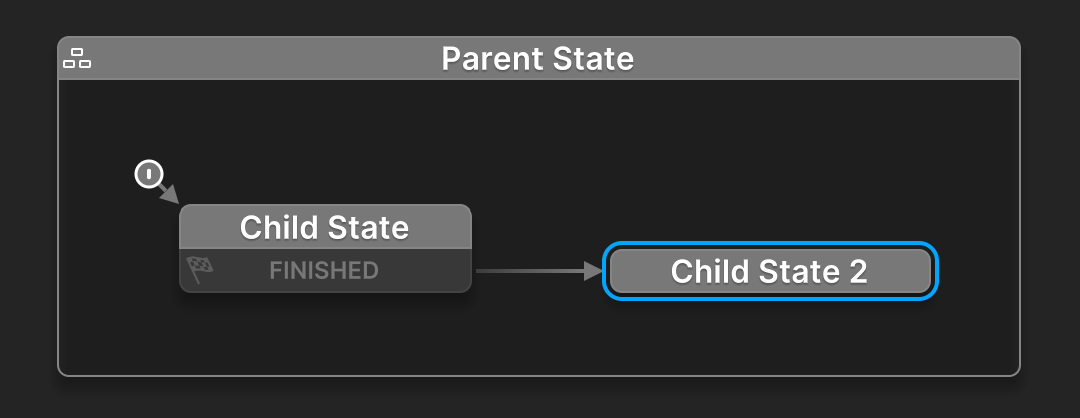
Alt+Drag nodes in and out of the parent states.
Node Context Menu
Right click the node to open a context menu:
| Command | Description |
|---|---|
| Add Transition | Add a new transition from the state. |
| Add Global Transition | Add a new global transition to the state. |
| Add Sub States | Add sub states nested inside the state. |
| Add Parent State | Nest the state inside a parent state. |
| Start State | Set the state to be the Start State. |
| End State | Set the state to be an End State. |
| Breakpoint | Toggle a breakpoint on the state. |
Inspector
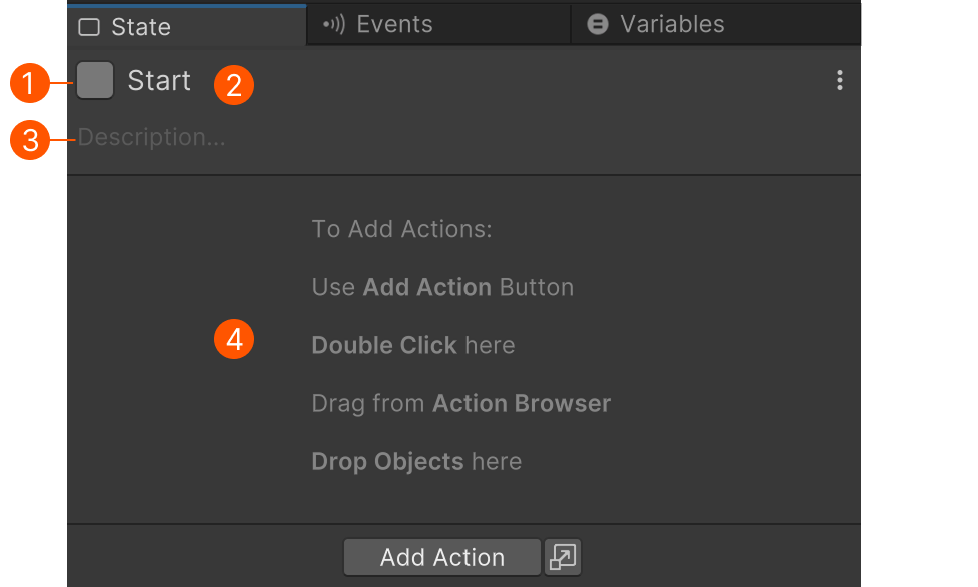
Select the state node to edit its properties:
| # | Control | Description |
|---|---|---|
| Icon Style Button | Click to edit the State Node's color and icon. | |
| Name | Click to edit the State's name. | |
| Description | Click to edit the description. Use this to help document your project as you build it. | |
| Action List | The Action List shows the actions to run while the state is active. |
Settings Menu
| Command | Description |
|---|---|
| Debug Variable Values | Shows variable values in action editors. |
| Dim Finished Actions | Dim actions after they finish running. |
| Delete All Actions | Delete all actions from the state. |
Shortcuts
Alt+Click the canvas to add a new state.
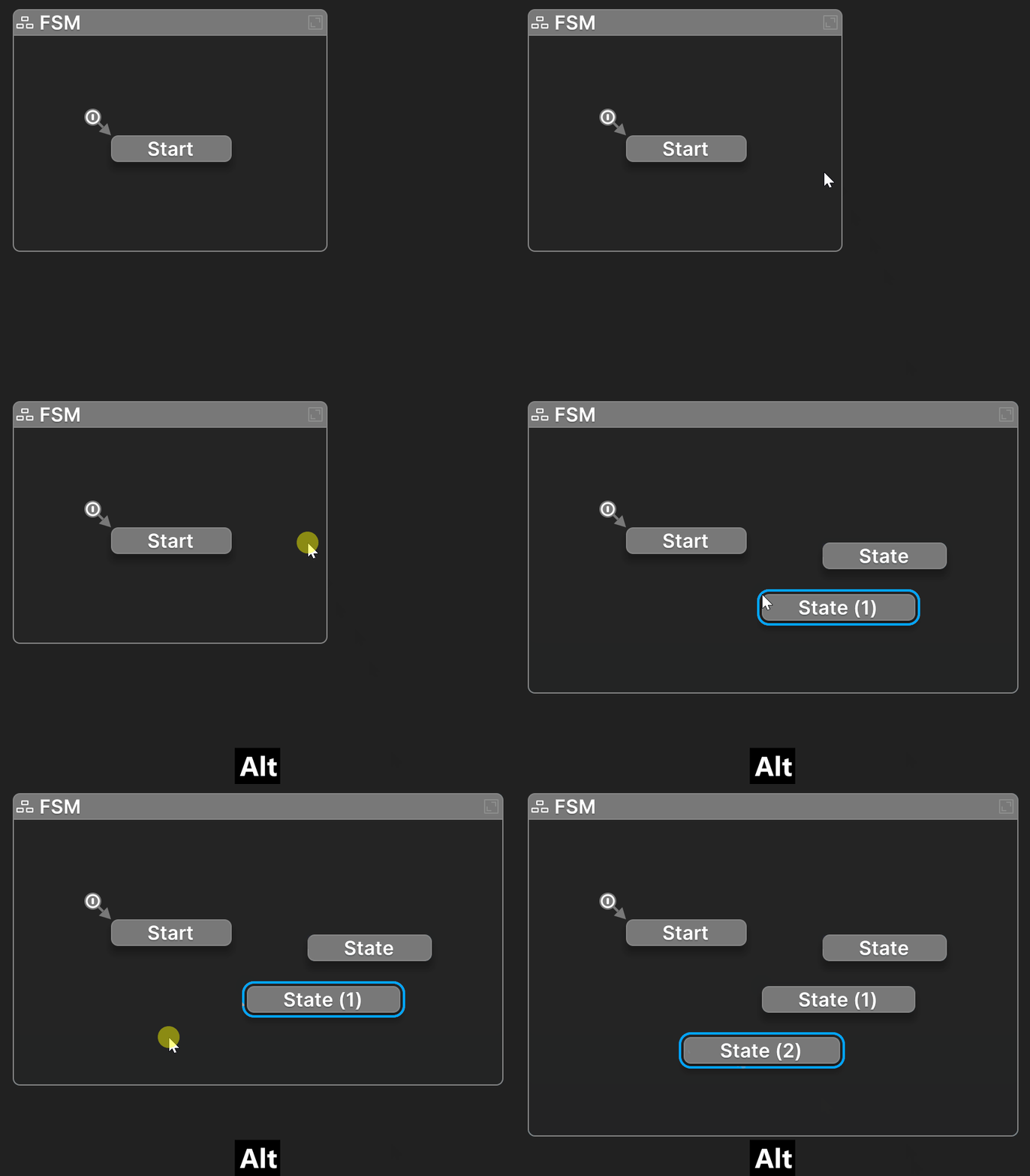
Alt+Click the state node to add a transition.
Drag actions from the Action Browser to the canvas to make a new state with the action.
Drag actions from other states onto the canvas to make a new state with those actions.