FSM Node
The FSM Node contains all nodes belonging to an FSM.
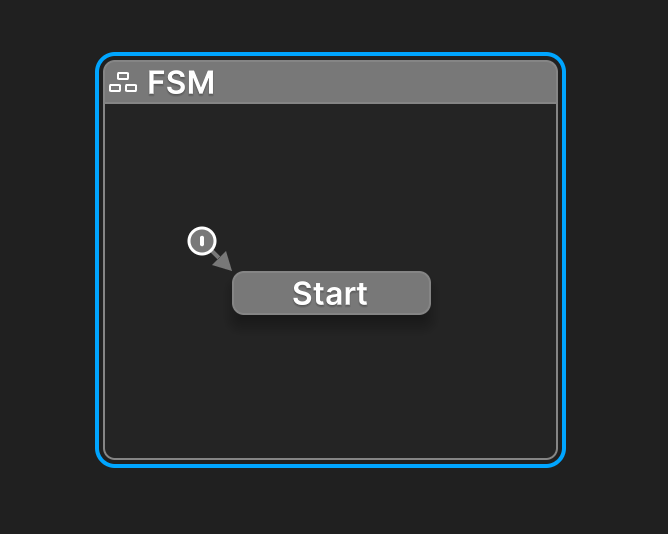
Right click inside the FSM Node to add nodes.
Node Context Menu
Right click the title bar to open an FSM context menu:
| Command | Description |
|---|---|
| Copy FSM | Copies the FSM. Can be pasted as a new FSM on another GameObject. |
| Save as Template | Save the FSM as an FSM Template asset that can be re-used. |
| Add Transition | Add a global transition from any state in the FSM. |
| Add Parallel Region | Add a child region. |
| Apply Style | Applies a style to the selected nodes. |
| Paste Region | Paste a previously copied Region. |
| Fit Contents | Auto-fit the node to its contents. |
| Reset FSM | Resets the FSM to its default state. |
| Delete FSM | Deletes the FSM and removes its component from the GameObject. |
Resizing
By default the node auto-fits its contents, but you can manually resize it by dragging its frame.
Right click and select Fit Contents to revert to auto-fit contents.
Inspector
Select the FSM Node to edit its properties:
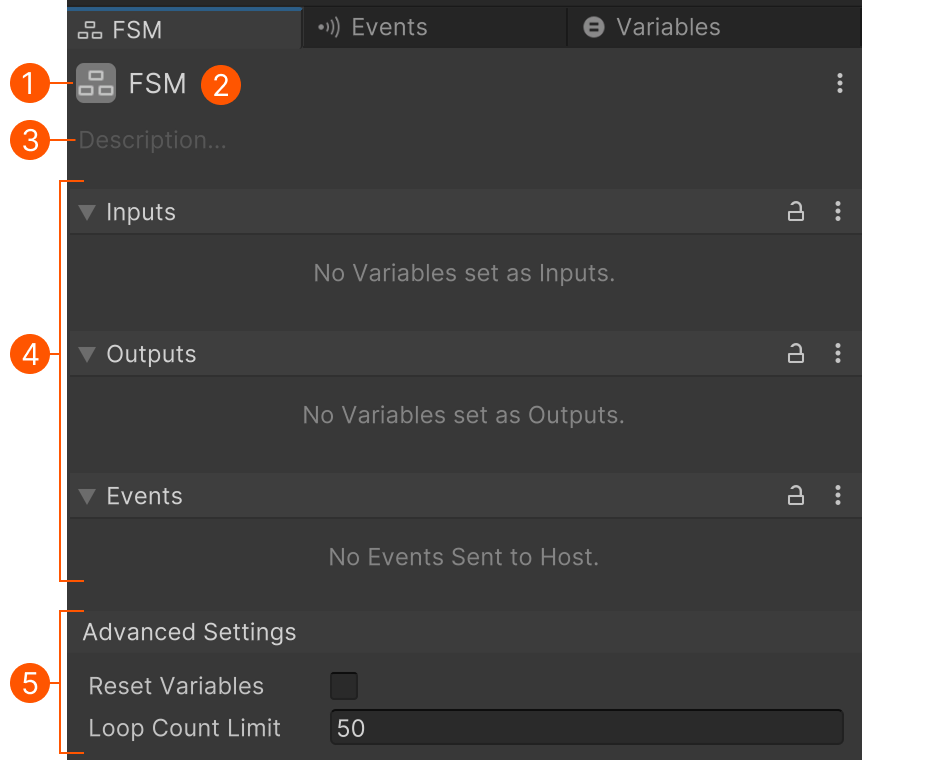
| # | Control | Description |
|---|---|---|
| Icon Style Button | Click to edit the FSM Node's color and icon. | |
| Name | Click to edit the FSM's name. | |
| Description | Click to edit the markdown description. Use this to help document your project as you build it. |
|
| Exposed Controls | Inputs and Outputs exposed in other inspectors. | |
| Advanced Settings | Less common but useful settings. |
The description also appears in the Graph View in the top left corner of the Region Node.
Markdown Tip
Use a --- divider to abbreviate the text shown on the canvas.
The node will show all text up to the first divider.
Exposed Controls
Variables can be exposed as inputs/outputs in the variables inspector.
Edit the lists to control how inputs/outputs appear in other inspectors:
- Drag to re-order items.
- Right click to add comments or groups.
The Events List shows any events sent to the host. For example, the Run Template action can react to these events.
Advanced Settings
Reset Variables
Determines if the FSM should reset variables to their initial values when re-starting.
Loop Count Limit
The maximum number of times a state can be entered in the same update. The FSM stops running after this limit is exceeded.
This is used to catch unintentional infinite loops that would otherwise hang forever.
If you know that you have loops bigger that this count, you can raise the limit for that FSM. For example, if you are spawning 200 bullets in a loop you could raise this to 250.