Referencing Scene Objects
Unity assets cannot save references to scene objects.
This means FSMs on prefabs and FSM Templates cannot directly reference scene objects in the Inspector.
To work around this, you need to locate or receive scene references at runtime. Below are several strategies you can use depending on your project setup.
Use Actions to Find Scene Objects
Use actions to search for scene objects dynamically while the game is running:
- Find Game Object - Finds a GameObject by name.
- Find Game Objects with Tag - Finds GameObjects with a Unity tag.
- Get Parent / Get Child - Navigate the GameObject hierarchy at runtime.
These actions let you store the found object in a variable, which can then be used by other actions in your FSM.
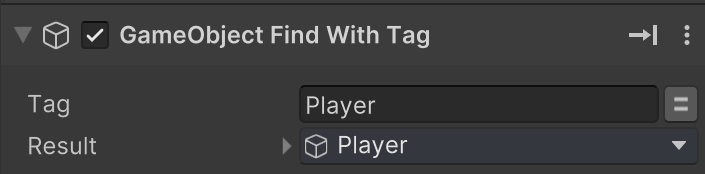
For example, find the GameObject with the Player tag:
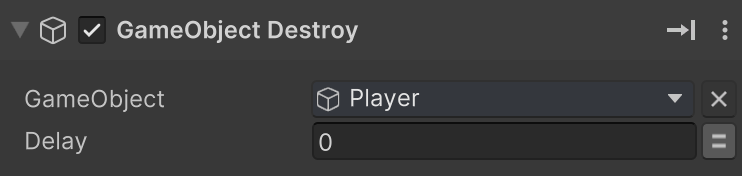
Now any action can use the Player variable:
Performance Tip
Find actions can be relatively slow. Try to use them only when needed.
For example, avoid using them every frame if the target is not changing.
Name and Tag Carefully
These actions rely on GameObject names and tags.
Be consistent and avoid changing names or tags in ways that could break your logic.
Use Global Variables
Use Global variables to share scene references across FSMs at runtime.
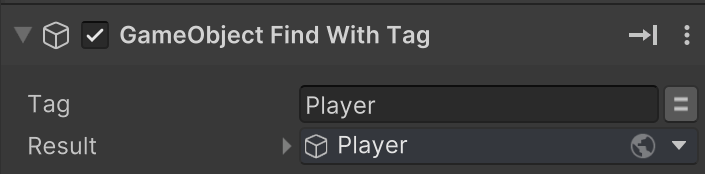
For example, find the Player GameObject and store it in a global Player variable:
Now any FSMs can use the global Player variable:
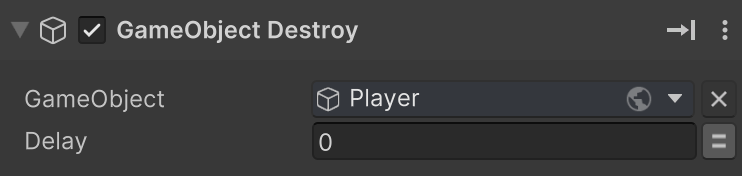
This pattern is especially useful when many FSMs need access to a scene object.
Other Object Types
Note, this doesn't just work with GameObjects.
Use this to store Components, Transforms, Materials, anything in the scene.
Use Input Variables
Input variables let you inject scene objects into an FSM. The input is set up at edit time, and injected at run time.
This is especially useful when using:
- FSMs on prefab instances placed in a scene.
- FSM Templates that need to work with different scene objects.
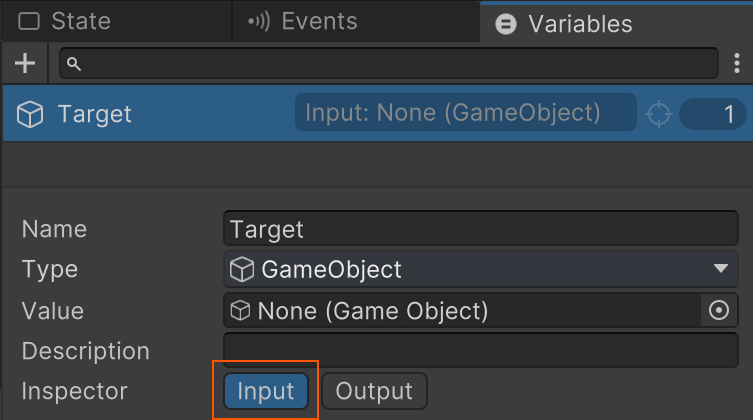
First expose a variable as an Input:
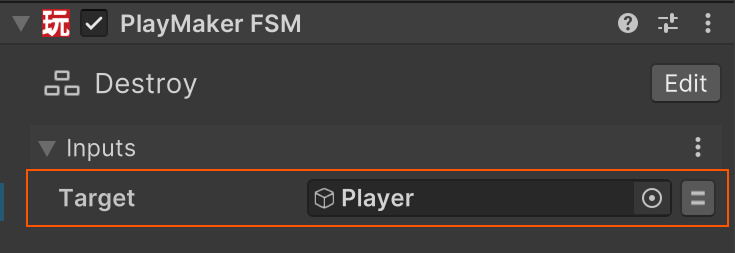
Then use the Inspector to assign a scene object to the input:
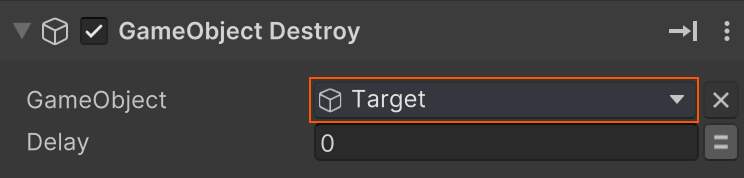
Now the FSM can use the variable without worrying how it got the value:
Performance Tip
Input variables are generally better for performance than Find Actions which can be relatively slow.
If you know the scene object at edit time, use Input variables instead of Find actions.
Use Global Events with Data
Events can carry data with them - including scene object references.
This lets you send an object reference from one FSM to another at runtime.
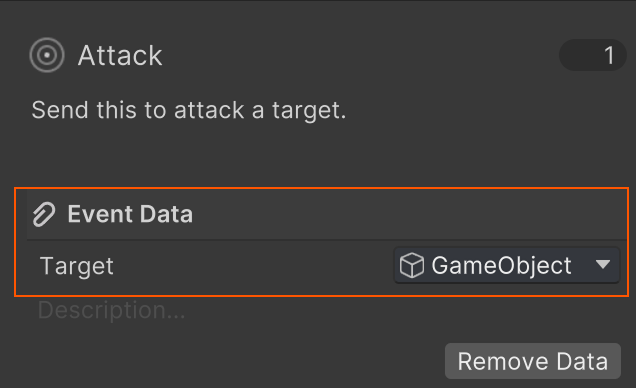
For example, to setup an Enemy FSM that responds to an Attack event:
Create a Global Event with GameObject data:
Send the Attack event and set the GameObject data:
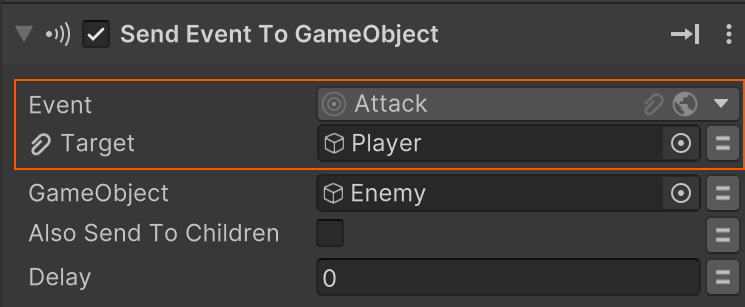
Get the GameObject data in the Enemy FSM using the transition inspector.
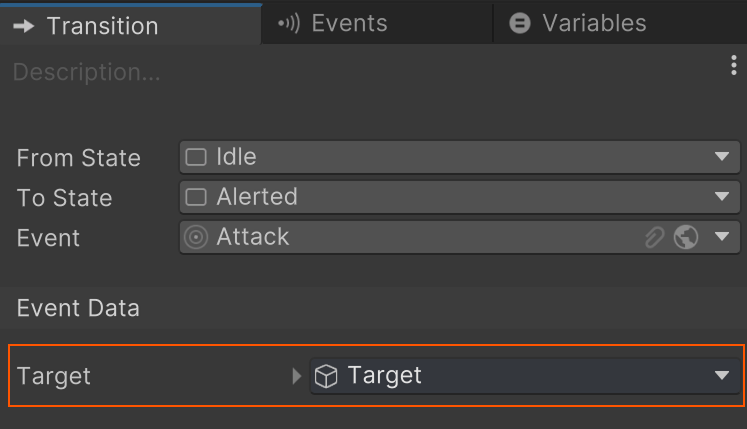
This pattern is great when triggering an FSM in reaction to something and also passing the context.
Use Set FSM Variable Actions
Use the Set FSM Variable actions to change the value of a variable in another FSM at runtime.
This is useful when:
- One FSM has the correct reference (e.g., it just found the player).
- Another FSM (e.g., from a template) needs that reference to work.
This allows for runtime injection of scene references, especially useful during FSM startup or initialization logic.
Use in Initialization
A dedicated initialization FSM can coordinate all your runtime references, setting variables across FSMs as needed.