Animate Variable Actions
Unity offers many ways to animate, and PlayMaker adds powerful Tween Actions for precise control. Sometimes, though, you just need a quick procedural animation.
Animate Variable Actions provide a simple way to animate values directly, without setting up complex tweens or curves.
Tip
Also search for Move Towards for simple actions that animate a variable value to another value.
Common Parameters
Most animate variables actions share these parameters:
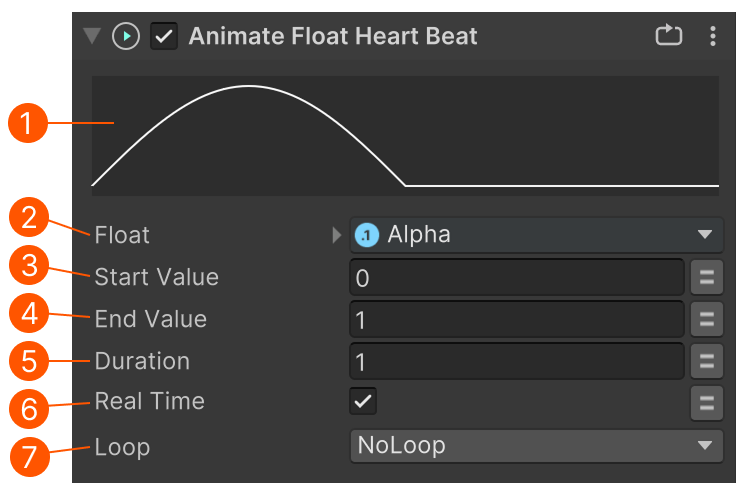
| # | Control | Description |
|---|---|---|
| Graph | A preview of the animation as a graph. | |
| Float | The float variable to animate. | |
| Start Value | The start value to animate from. | |
| End Value | The end value to animate to. | |
| Duration | How long the animation takes in seconds. | |
| UseRealtime | Uses unscaled time. For example, if time scale is set to 0 in a pause menu. |
|
| Loop Settings | If and how the animation should loop. |
Convert Actions
Use the Convert Menu to quickly switch between animation actions.