Interactables
The Interactables system lets you define objects the player can use, examine, enter, climb, or otherwise interact with.
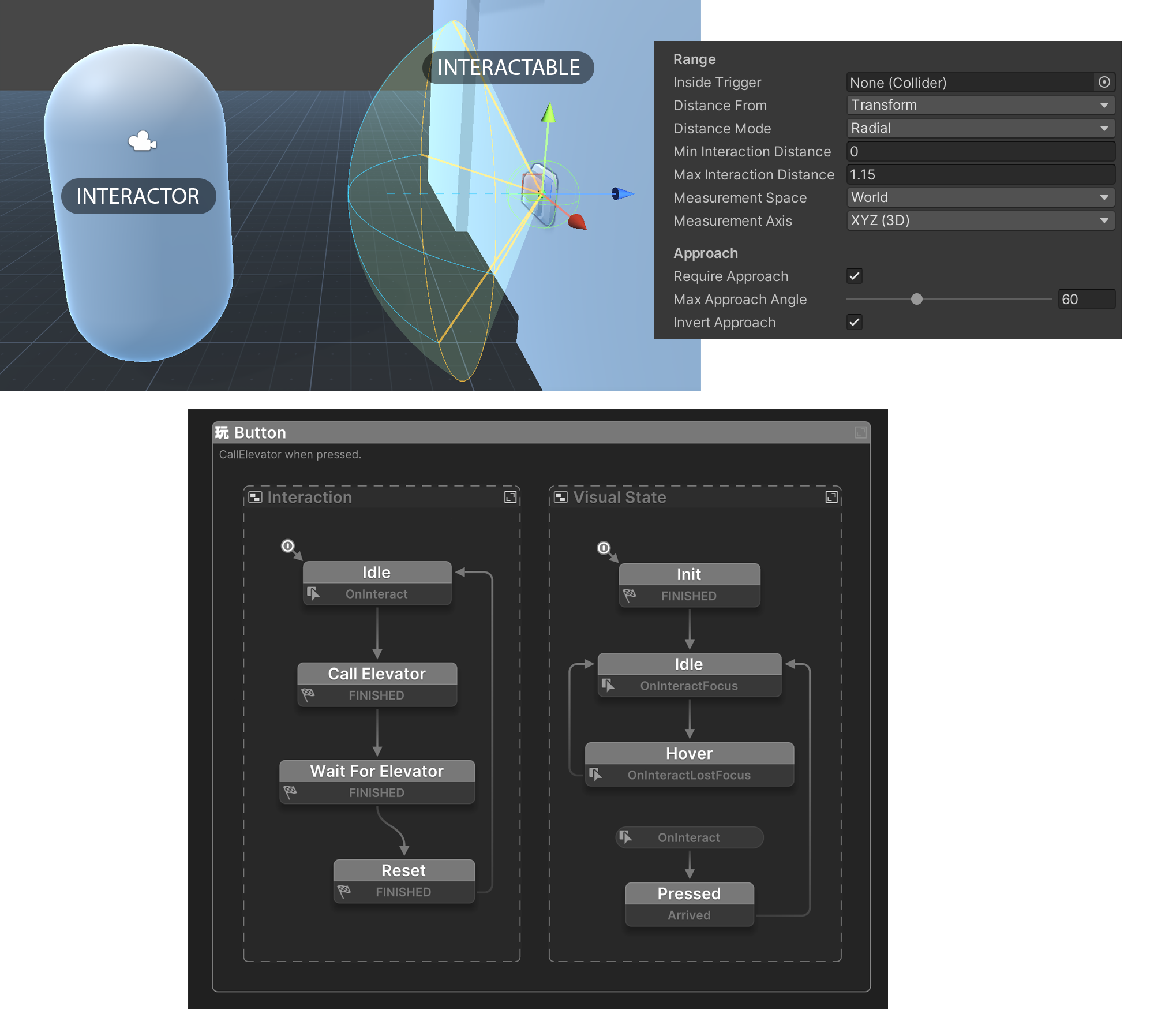
At a high level:
- An Interactable marks a GameObject as something that can be interacted with.
- An Interactor scans the scene, finds the best valid Interactable, and triggers system events as interactions begin, continue, and end.
This gives you a reusable way to build interactions such as doors, ladders, seats, switches, pickups, vehicles, and terminals.
For FSMs, the main entry point into this system is the InteractorUpdate action. It updates an Interactor, evaluates nearby Interactables, handles optional activation input, writes useful outputs, and sends the interaction system events.
How It Works
The system evaluates nearby Interactables and checks whether each one is valid for the current actor.
An Interactable can define rules such as:
- how far away the actor can be
- whether the actor must be inside a trigger
- whether the actor must approach from a specific side
- whether the actor must be facing the target
- whether a raycast hit is required
- whether the interaction happens automatically or only after activation
The Interactor chooses the best candidate based on those rules and the Interactable priority.
To review all interactables currently loaded in your scenes, use the Interactables Browser.
Core Components
Interactable
Add Component > PlayMaker > Interactable
Add the Interactable component to any object you want the system to detect.
Use it to define:
- the interaction name, such as
Door,Climb, orSeat - the target GameObject that should receive events
- distance and position limits
- approach and facing requirements
- optional activation and docking behavior
Interactor
Add Component > PlayMaker > Interactor
Add the Interactor component to the actor that performs interactions, such as the player or an AI character.
Use it to define:
- where interaction checks start from
- which layers can contain interactables
- which layers can block raycast checks
- the search radius
- an optional tag filter
See: Interactor Component
Basic Setup
Use this workflow to get a simple interaction working:
- Add an Interactable component to the object you want to use.
- Make sure the object has a Collider, or a child/related Collider the system can resolve.
- Set the interaction name and any range, facing, or activation rules.
- Add an Interactor component to the player or actor.
- Set the Interactor search radius and layer mask so it can find the target.
- In the actor FSM, use
InteractorUpdateevery frame to update the Interactor. - Read the action outputs or respond to the interaction system events in your FSMs.
Interaction Events
The Interactables system sends events to both the actor and the Interactable target as selection and interaction state changes.
The main events are:
OnInteractAvailableOnInteractUnavailableOnInteractFocusOnInteractLostFocusOnInteractStartOnInteractOnInteractEnd
For a full lifecycle walkthrough, event timing, and examples, see Interaction Events.
Example
Here is a common pattern for a button that the player activates with a Use key:
- Add an Interactable component to the button.
- Set Name to
Use. - Enable Needs Activation.
- Optionally set the activation ID to
Use. - Add an Interactor component to the player.
- Configure the Interactor to search the layer used by the button collider.
- In the player FSM, run
InteractorUpdateevery frame and provide activation input when the Use control is pressed. - In the button FSM, handle
OnInteractto play the button press animation and trigger your gameplay logic.
For interactions that have a clear enter and exit phase, such as ladders, seats, or elevators, you can also handle OnInteractStart and OnInteractEnd.
For a ladder or climb volume, you would usually use a larger collider, a suitable interaction name such as Climb, and often disable explicit activation if entering the interaction should happen automatically.