Editing Prefab Instances
Best Practice
- Keep the FSM’s core behavior defined in the prefab.
- Expose anything you want to tweak as an Input.
- In prefab instances, set Input values in the PlayMaker FSM Component inspector.
This keeps logic in one place and makes your adjustments deliberate, trackable, and easy to maintain.
You can open a prefab instance in the FSM Editor to:
- Preview or debug the FSM while playing.
- Edit the instance and apply overrides back to the prefab.
- Make small adjustments to instance values, such as tweaking variables or other exposed settings.
Previewing Prefabs
Dragging a prefab into a scene to test its behaviour while playing is encouraged.
It mimics what happens when prefabs are instantiated at runtime.
Editing the Instance
In Unity you generally either edit a prefab in Prefab Mode, or edit an instance in a scene and then apply changes back to the prefab.
With PlayMaker FSMs, it is usually best to edit the prefab directly.
Editing a prefab instance in a scene is supported. The editor shows you prefab overrides as you work so you can decide what to apply or revert.
Small Edits vs Structural Edits
PlayMaker distinguishes between:
- Non-structural edits: ordinary property changes such as descriptions, values, action parameters, colors, icons, and positions.
- Structural edits: changes that modify the FSM’s structure, such as adding or removing actions, variables, events, states, transitions, regions, or editor nodes.
Non-structural edits can usually be applied or reverted from the local override UI.
Structural edits affect the FSM as a whole. When PlayMaker detects structural changes on a prefab instance, the override UI switches to Apply Component and Revert Component. This is because structural changes can affect references across the FSM, so they must be applied or reverted at the component level rather than node-by-node.
Making Small Adjustments
Making small instance-specific adjustments is supported, but it should be done with care.
It is easy to lose track of per-instance changes, or to unexpectedly inherit changes later when the prefab is updated.
Where possible, expose behaviour you want to tweak as Inputs.
Think of an FSM Like a Script
A prefab instance should not rewrite the FSM’s structure.
Instead, it should override values that were intentionally exposed for customization.
Prefab Overrides
The editor shows if there are any overrides on a node or child nodes:
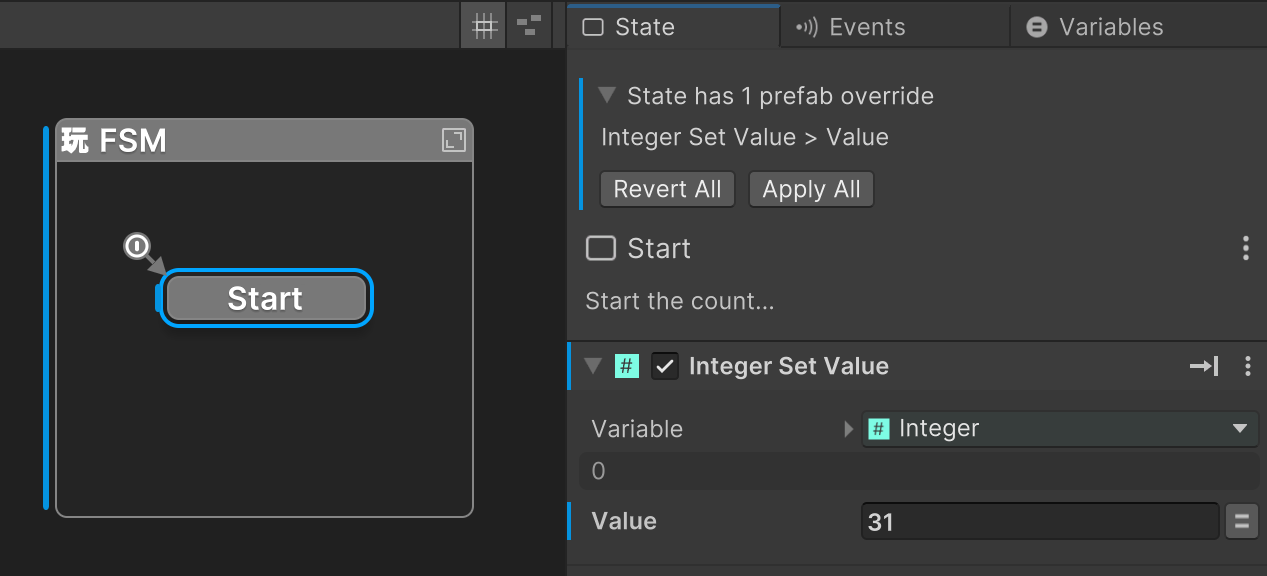
This shows you exactly what has changed in the instance.
- Revert All: Discard overrides shown in this panel.
- Apply All: Apply overrides shown in this panel to the prefab.
Best practice is to keep prefab instances aligned with their prefabs,
so once you decide whether to keep a change, you should apply or revert it promptly.
If the FSM structure has changed, the Revert/Apply options change:
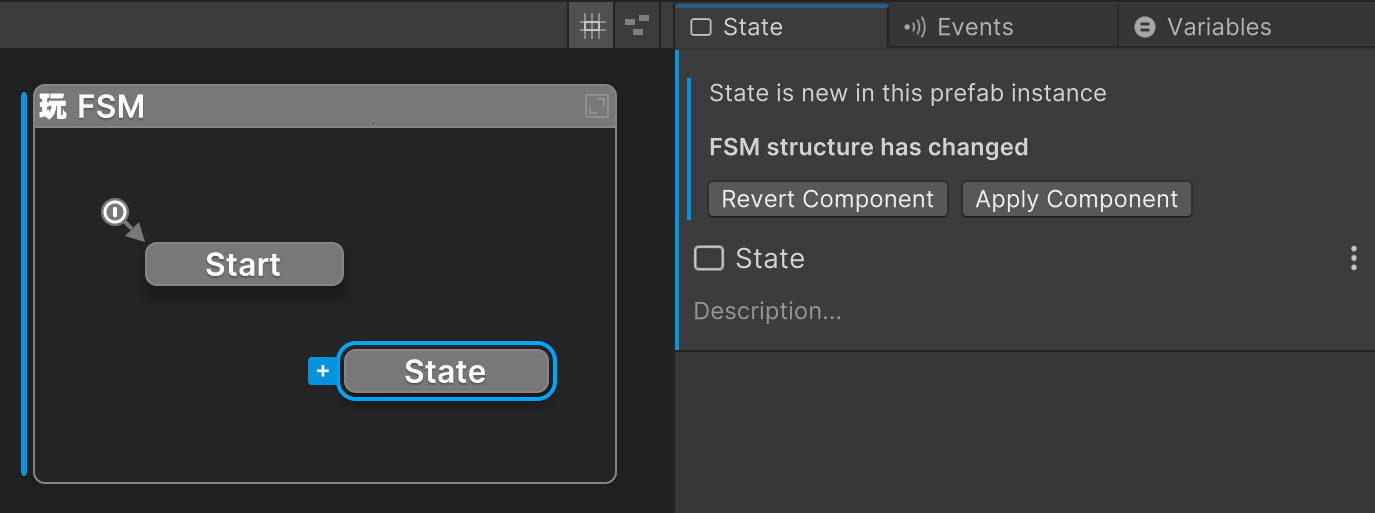
- Revert Component: Revert the whole FSM component override state.
- Apply Component: Apply the whole FSM component override state to the prefab.
The root FSM Apply/Revert controls are also available in the FSM Component:
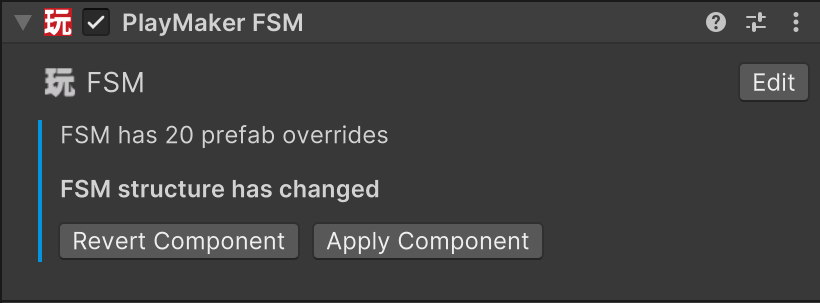
Note
Local Revert/Apply affects the overrides shown in that panel.
Component-level Revert/Apply affects the entire FSM component, including other component-level overrides such as Inputs and Outputs.