NavGrid Tile Cost Profile
Create → PlayMaker → NavGrid → Tile Cost Profile
A NavGrid Tile Cost Profile is a ScriptableObject that assigns movement costs to tiles on a Tilemap.
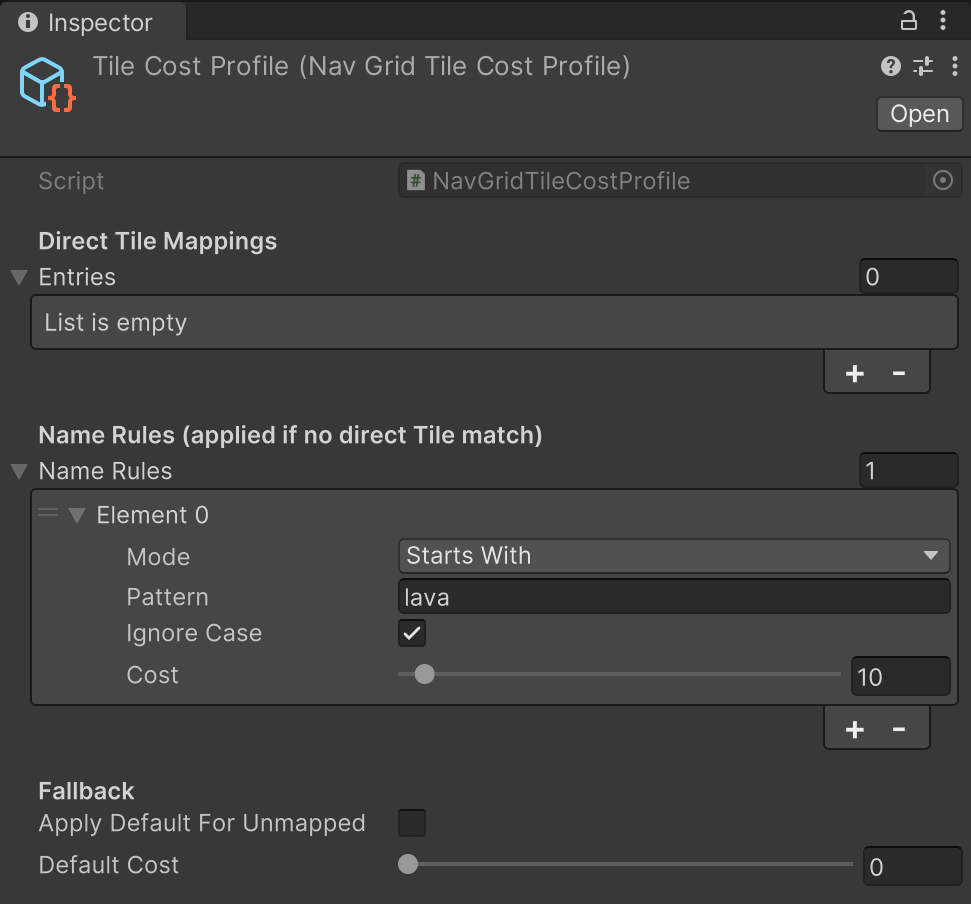
NavGridAgents use these costs when pathfinding:
- Low cost = preferred
- High cost = avoided if possible
This lets you make things like roads, slow tiles, dangerous tiles, and “soft” obstacles without changing walkability.
What Is a Tile Cost Profile?
A Tile Cost Profile answers:
“If this tile is here, how expensive is it to walk on that cell?”
It can assign costs in three ways:
- Direct Tile Mappings – match a specific Tile asset
- Name Rules – match tiles by their
nameusing patterns - Default Cost – a fallback cost for any tile not covered above
You usually use this profile with the Apply Tile Cost Profile action when building or baking a NavGrid.
Direct Tile Mappings
These are the most precise rules.
Direct Tile Mappings let you say:
- “This exact Tile asset = cost 50”
- “This specific ‘LavaTile’ = cost 200”
- “This ‘RoadTile’ = cost 5”
Use this when:
- You have a fixed set of important tiles
- You want fast, unambiguous matching
Name Rules
Name Rules look at tile.name and apply a cost when the name matches a pattern.
Each rule has:
- Mode – Exact, StartsWith, EndsWith, Contains, Regex
- Pattern – the text or regex to match
- Ignore Case
- Cost –
0–255
Rules are evaluated in order:
- “First matching rule wins”
- Applied only if no direct tile match exists
Great for large tilesets or organized naming schemes.
Default Cost (Fallback)
- Apply Default For Unmapped
If enabled, any tile not matched earlier gets the Default Cost.
Useful when:
- You want everything to have some cost
- You want a baseline cost for generic tiles
Typical Workflow
- Create a Tile Cost Profile asset
- Add Direct Tile Mappings for important tiles
- Add Name Rules for grouped tile names
- Set Default Cost (optional)
- Apply using the NavGrid Apply Tile Cost Profile action while building a NavGrid
- Let NavGridAgents naturally prefer low-cost paths
Design Tips
- Use small costs (5–20) for preferred paths
- Use high costs (150–255) for hazards
- Combine with NavGrid pruning if you also block locations
- Avoid overusing Regex unless necessary