Tilemap Minimap
The Tilemap Minimap widget renders one or more Unity Tilemaps into a UI minimap and places tracked targets as blips on top of it.
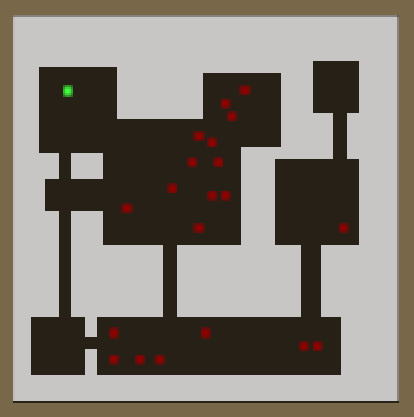
Tilemap Minimap Component
Add Component -> PlayMaker -> Widgets -> Tilemap Minimap
Setup the component in the scene and then use actions to add targets etc.
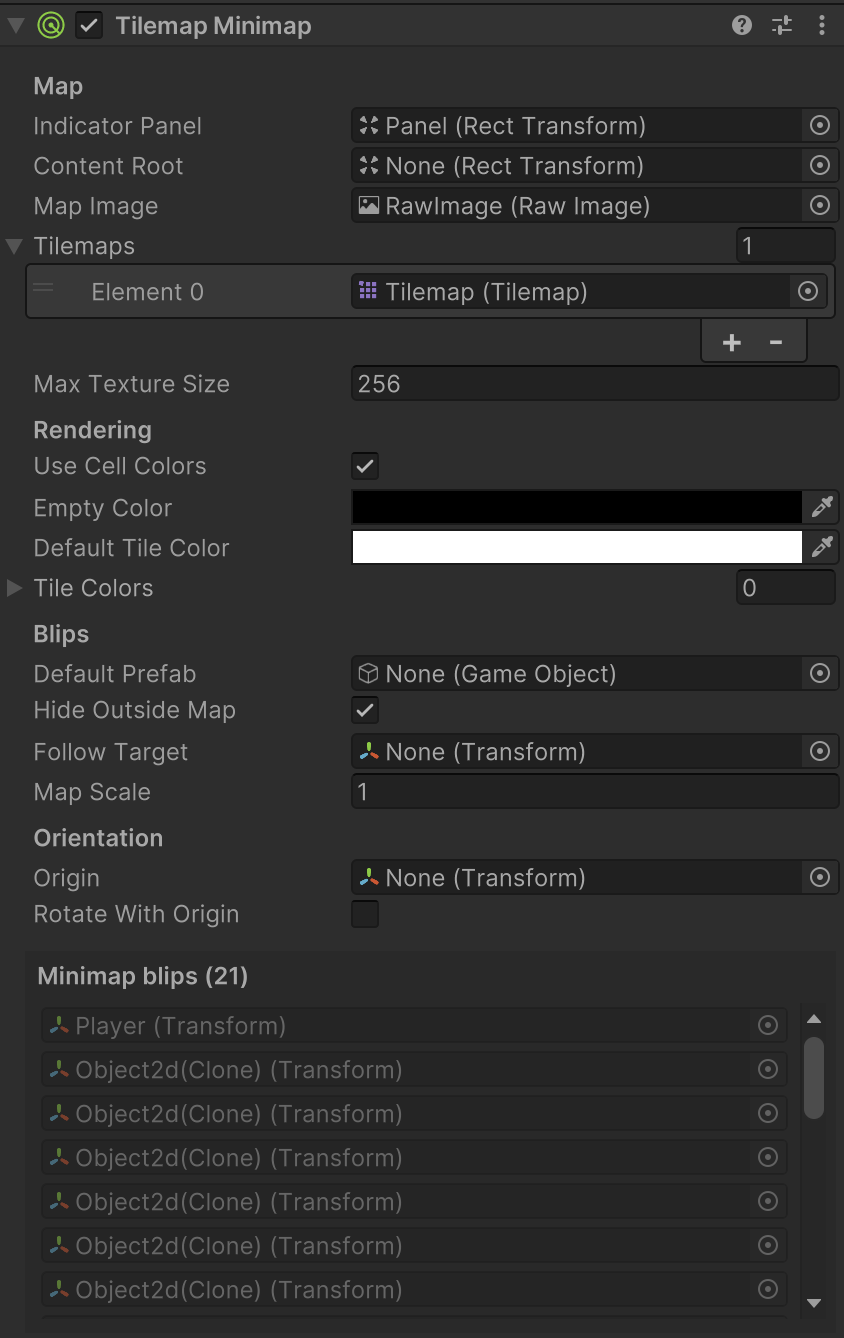
| Field | Description |
|---|---|
| Indicator Panel | The main RectTransform area used by the minimap.The generated map is fitted inside this panel. |
| Content Root | Optional root used for the map image and spawned blips. If left empty, the widget uses Indicator Panel. |
| Map Image | RawImage used to display the generated minimap texture. |
| Tilemaps | List of Tilemaps merged into the minimap render. The first valid tilemap defines the projection grid for targets. |
| Max Texture Size | Upper bound for the generated texture width and height. Larger values preserve more detail but use more memory. |
| Use Cell Colors | If enabled, tile colors are multiplied by the Tilemap cell colors. |
| Empty Color | Color used for empty cells with no tile. |
| Default Tile Color | Fallback color used for non-empty tiles that do not have a specific color rule. |
| Tile Colors | Optional per-tile color overrides for specific tile types. |
| Default Prefab | Fallback UI prefab used for blips when a target is added without a prefab override. |
| Hide Outside Map | If enabled, blips are hidden when their projected cell lies outside the rendered map bounds. |
| Follow Target | Optional target used to center the visible minimap window. |
| Map Scale | Zoom level for the visible minimap window. 1 shows the full map, higher values zoom in. |
| Origin | Optional transform used as the rotation source for the minimap. |
| Rotate With Origin | If enabled, rotates the minimap content using the assigned origin. |
| Minimap blips | While playing you can see the targets added to the widget. |
How It Works
When the widget updates, it:
- Merges one or more Tilemaps into a single minimap texture.
- Uses the first valid tilemap as the projection grid for converting world positions into map positions.
- Fits that generated map inside the assigned UI panel.
- Spawns UI blips for tracked targets.
- Positions each blip using the same tilemap coordinates as the rendered map.
This makes it a good fit for:
- top-down tile-based maps
- 2D adventure games
- tactical maps
- dungeon layouts
- world-space monitors or HUD minimaps
Prefab Requirements
Blip prefabs must:
- Use a RectTransform as the root
- Work under the minimap's indicator panel or content root
- They can also include Images, TextMeshPro, layout components, and simple animations or effects
Tip
The easiest way to make the prefab is under the canvas in the scene, so you can see it in context, then turn it into a prefab.
Use FSMs to customize the UI based on the target:
Add a Target Object component to the prefab root to store information about the target.
Use Target Widget Get Target to get information from the Target Object component.
Using this data, you can create UI like:
- Different blips for enemies, allies, objectives, or loot
- Animated markers for points of interest
- Icons that react to target state
- Labels or readouts attached to the minimap blip
Actions
Tilemap Minimap uses both the shared Target Manager actions and minimap-specific actions:
- TargetManager Add Target
- TargetManager Remove Target
- TargetManager Clear Targets
- TargetManager Get Indicator
- TargetWidget Get Info
- Tilemap Minimap Refresh
- Tilemap Minimap Set Origin
- Tilemap Minimap Set Rotate With Origin
- Tilemap Minimap Set Follow Target
- Tilemap Minimap Set Map Scale
Setup Steps
- Create a UI panel for the minimap.
- Add a RawImage as the map display.
- Add Tilemap Minimap to a GameObject.
- Assign Indicator Panel and Map Image.
- Add one or more Tilemaps to the Tilemaps list.
- Assign a default blip prefab with a RectTransform root.
- Optionally assign Follow Target for a scrolling minimap.
- Optionally assign Origin and enable Rotate With Origin.
- Use TargetManager Add Target to add tracked targets at runtime.
Example Uses
Static dungeon map
- Follow Target: off
- Rotate With Origin: off
- Map Scale:
1
This shows the full tilemap as a fixed overview.
Player-following minimap
- Follow Target: player
- Rotate With Origin: off
- Map Scale:
2or higher
This creates a centered scrolling minimap.
Player-facing rotating minimap
- Follow Target: player
- Origin: player
- Rotate With Origin: on
- Map Scale:
2or higher
This behaves more like a traditional action-game minimap where the player direction stays consistent on the display.
Tips
- If blips do not line up with the map, check that all Tilemaps use a compatible Grid/Layout with the first valid Tilemap in the Tilemaps list, because that first Tilemap still defines the projection grid used for targets and merged map coordinates.
- If the map looks blurry or blocky, increase Max Texture Size.
- Use Tile Colors to simplify the map into clear gameplay colors instead of mirroring the full art style.
- If you change tile content at runtime, call Tilemap Minimap Refresh so the texture rebuilds.
- A transparent Empty Color works well when the minimap sits over a styled UI panel.