Offscreen Indicator
Offscreen Indicator widgets create UI arrows or markers that point toward targets that are outside the camera's view.
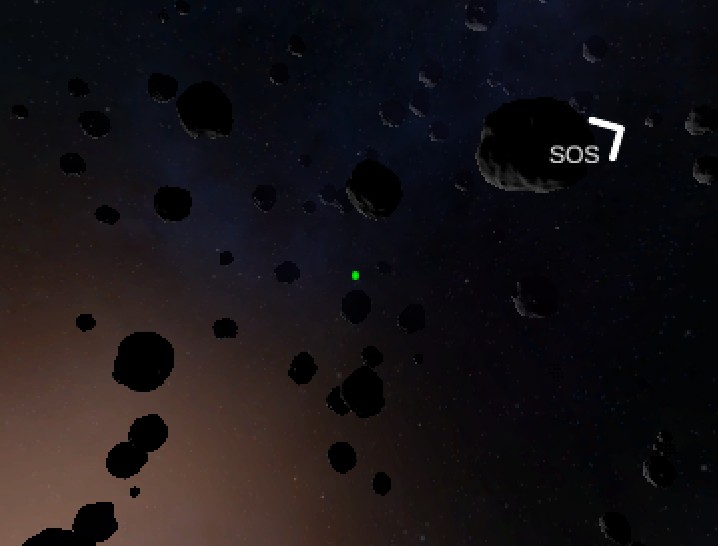
This is commonly used for enemies, objectives, damage directions, collectibles, or waypoints.
Offscreen Indicator Component
Add Component -> PlayMaker -> Widgets -> Offscreen Indicator
Setup the component in the scene and then use actions to add targets etc.
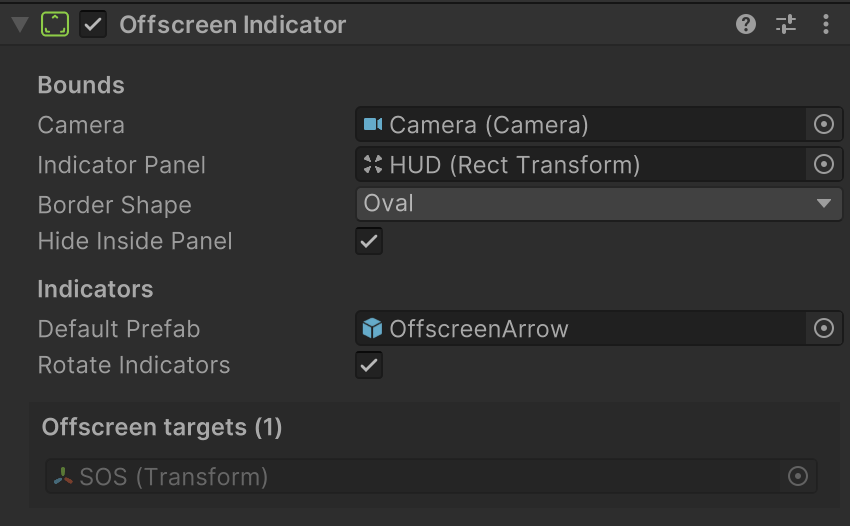
| Field | Description |
|---|---|
| Camera | Camera used to project target world positions into screen space. If left empty, the widget uses Camera.main. |
| Indicator Panel | The RectTransform area where indicators are spawned and constrained.This panel defines the border the indicators clamp to. |
| Border Shape | Shape used for the indicator boundary: Rectangle or Oval.Rectangle clamps to the panel edges, while Oval clamps to an ellipse inside the panel. |
| Hide Inside Panel | If enabled, indicators are hidden while the target is visible inside the camera view. If disabled, indicators remain shown even for onscreen targets. |
| Default Prefab | Fallback UI prefab to spawn when adding a target without a prefab override. See Prefab Requirements. |
| Rotate Indicators | If enabled, rotates spawned indicators so they point toward the target direction. This assumes the arrow graphic points upward in its default orientation. |
| Offscreen Targets | While playing you can see the targets added to the widget. |
How It Works
When you add a target, the Offscreen Indicator:
- Spawns a UI prefab (arrow, bracket, icon, etc.).
- Tracks the target's screen-space position every frame.
- Checks whether the target is visible by the camera.
- If the target is offscreen:
- Shows the indicator
- Positions it along the nearest screen edge
- Rotates it to point toward the target
- If the target is onscreen:
- Optionally hides the indicator
- A Target Indicator can be used to track the target onscreen
Prefab Requirements
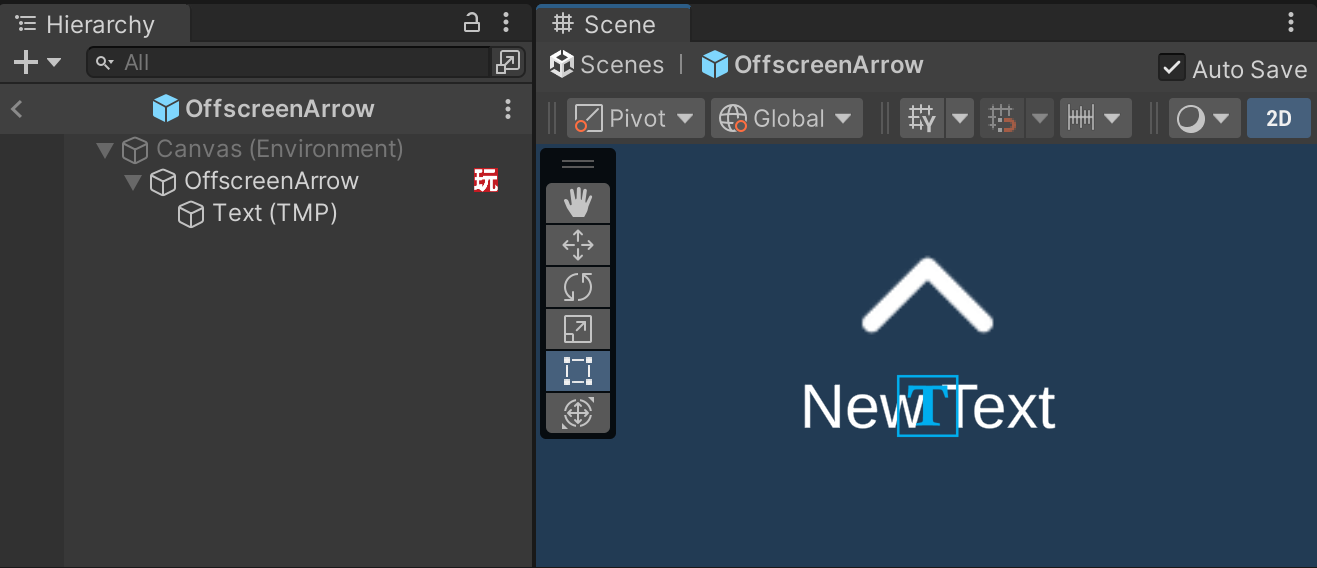
Indicator prefabs must:
- Use a RectTransform as the root
- Work under a screen-space Canvas managed by the widget
- They can also include Images, TextMeshPro, and layout components
Tip
The easiest way to make the prefab is under the canvas in the scene, so you can see it in context, then turn it into a prefab.
Use FSMs to customize the UI based on the target:
Add a Target Object component to the prefab root to store information about the target.
Use Target Widget Get Target to get information from the Target Object component.
Use this to customize the UI, e.g., target name, icon, distance, health, etc.
Actions
Offscreen Indicator uses the shared Target Manager action set:
- TargetManager Add Target
- TargetManager Remove Target
- TargetManager Clear Targets
- TargetManager Get Indicator
- TargetWidget Get Target
- TargetWidget Get Info
Tips
- Offscreen Indicators and Target Indicators work well together:
- OffscreenIndicator shows direction when target is out of view.
- TargetIndicator shows brackets and labels when the target is visible.
- You can nest meters, labels, or other UI Widgets inside the prefab.
- A single manager can track many targets efficiently.