Interactable Component
Add Component > PlayMaker > Interactable
The Interactable component marks a GameObject as something the Interactables system can detect and use.
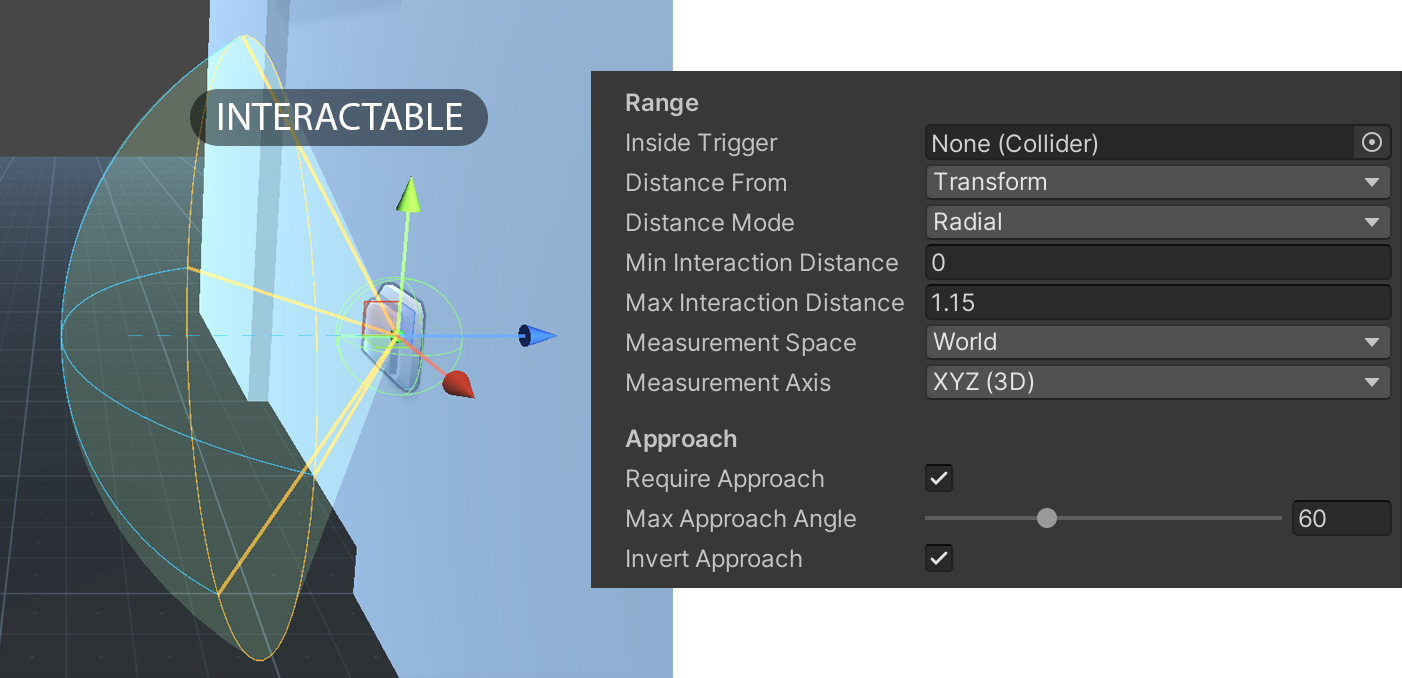
Use it to describe:
- what kind of interaction this is
- which GameObject should receive the interaction events
- when the interaction is valid
- whether the actor must activate it explicitly
- whether the actor should dock or align to a transform when the interaction starts
Typical Setup
For most objects, this is the basic workflow:
- Add the Interactable component to the target object.
- Make sure the object has a Collider, or a resolvable Collider in its hierarchy.
- Set Name to describe the interaction, such as
Door,Seat,Climb, orUse. - Leave Target GameObject empty unless another GameObject should receive the events.
- Set the interaction range and any approach or facing rules.
- Enable Needs Activation if the player must press a button to trigger it.
Scene Gizmos
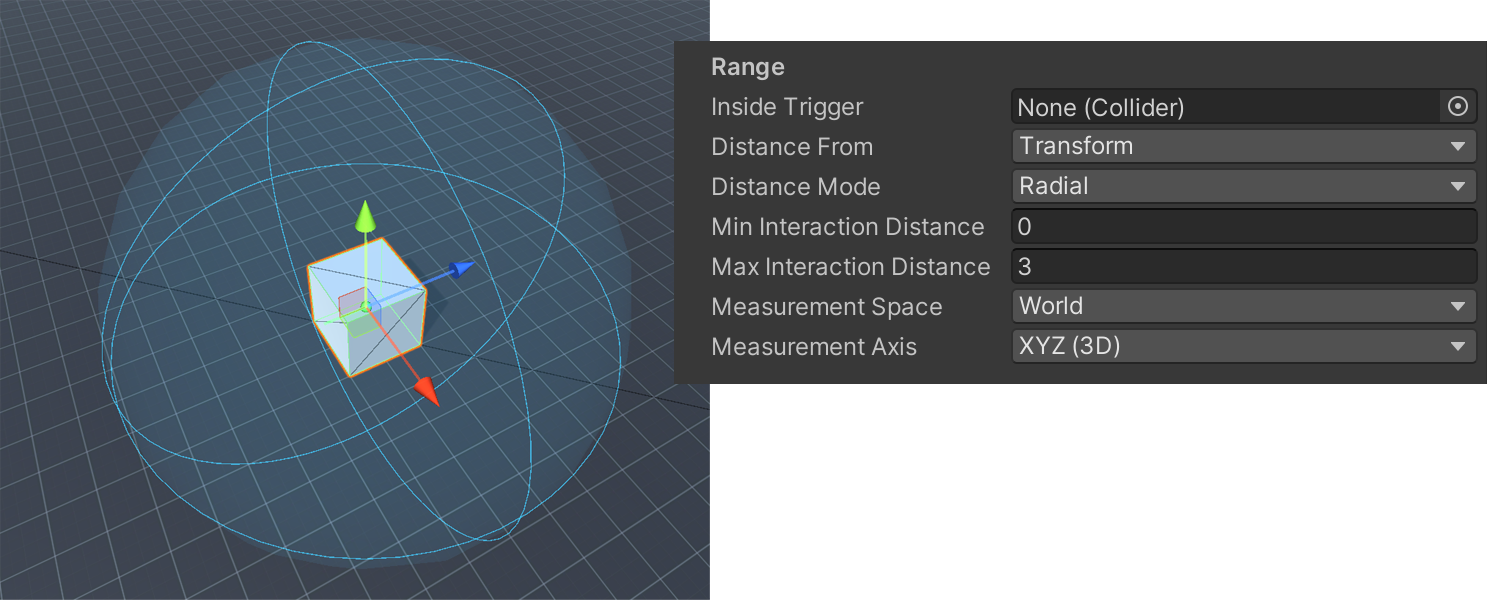
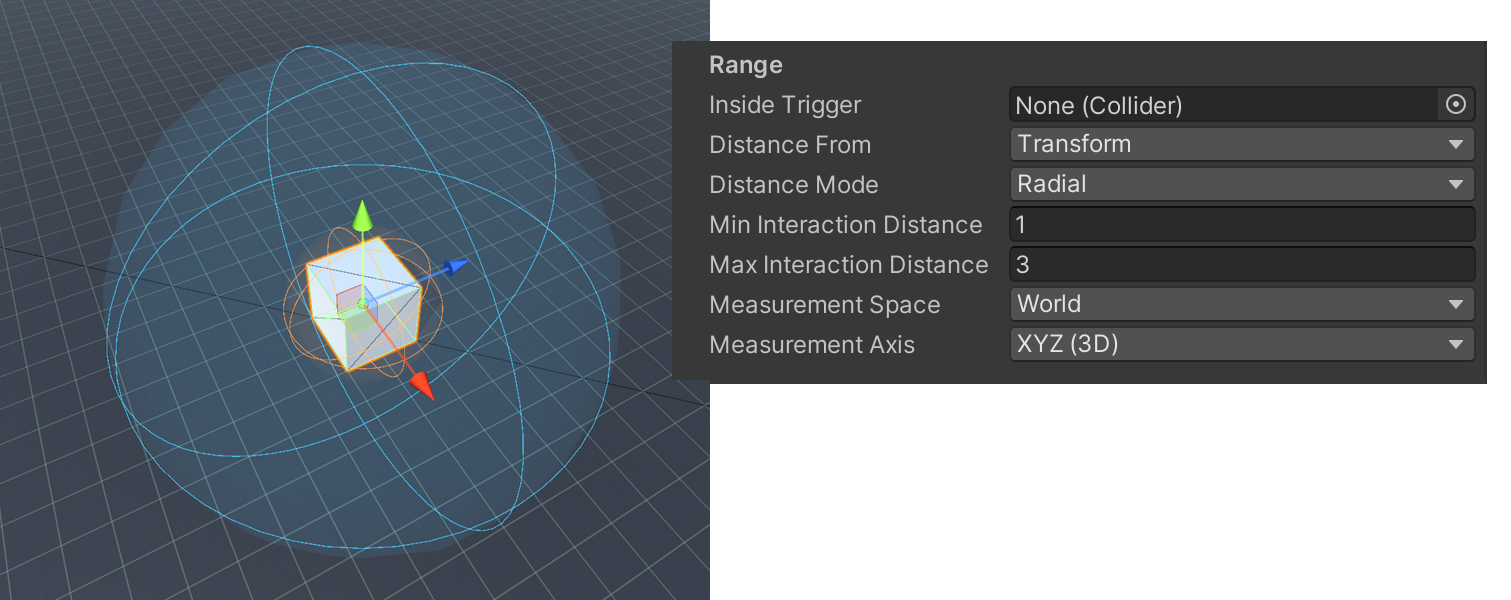
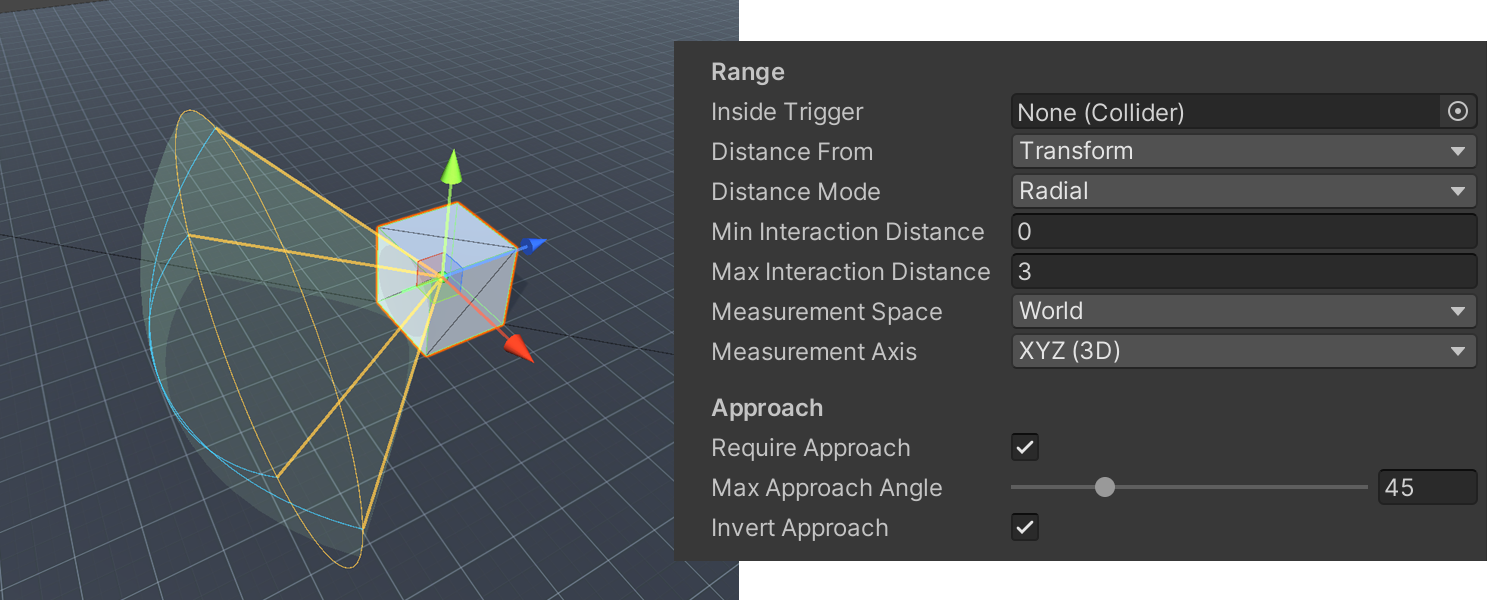
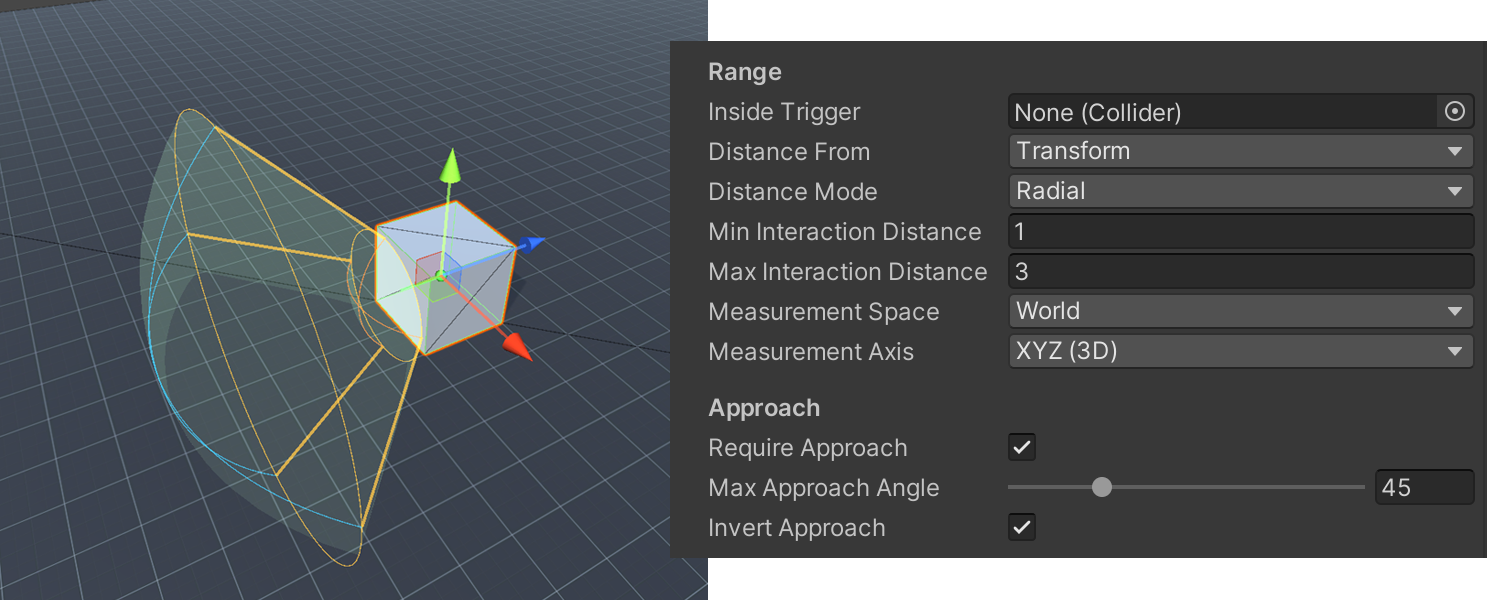
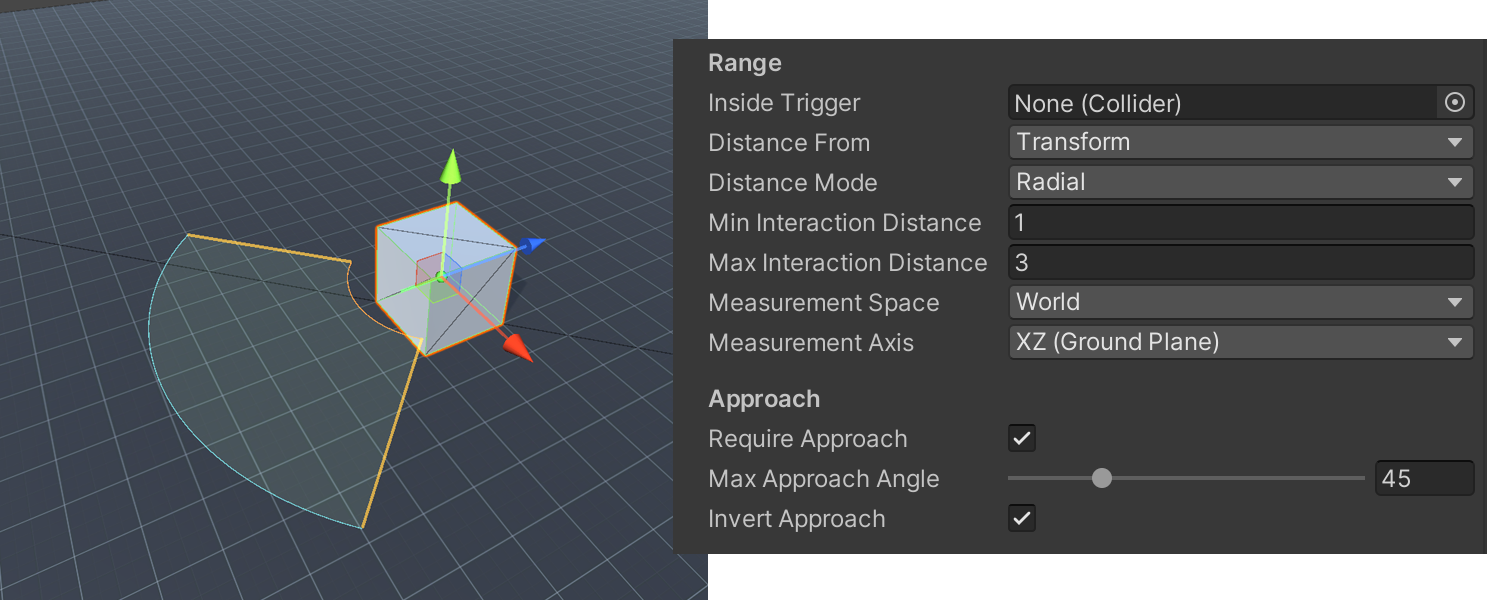
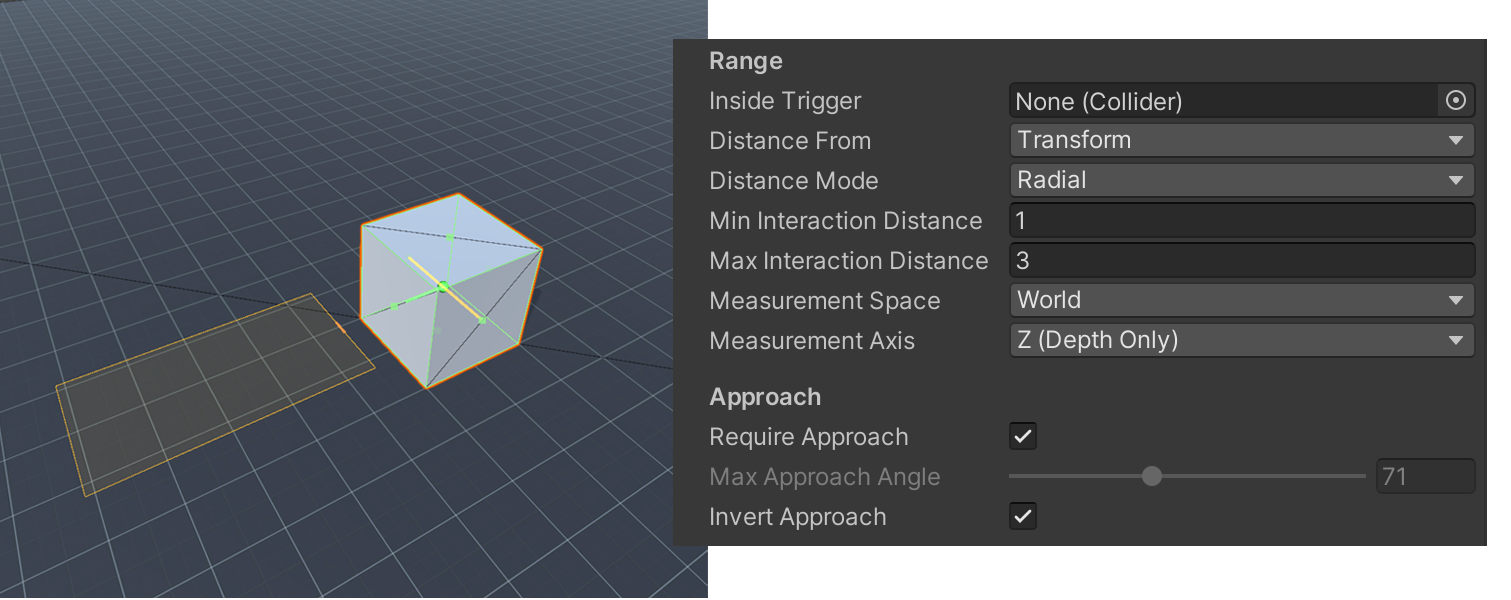
In the Scene view, gizmos visualize settings such as interaction distance and approach angle on the Interactable. This makes it easier to see how options like Measurement Space, Measurement Axis, and Invert Approach change the valid interaction area.
Inspector Reference
Interaction
| Field | Description |
|---|---|
Enabled |
Turns the Interactable on or off for the system. |
Name |
The interaction name sent through the system, such as Generic, Climb, or Use. |
Target GameObject |
Optional object that receives the interaction events. If empty, the Interactable's own GameObject is used. |
Interaction Direction |
The authored direction used for approach and facing checks. Forward is common in 3D scenes, while Right or Up can work better in side-view or top-down setups. |
Needs Activation |
If enabled, the interaction only fires after an activation input is sent. |
ID |
Optional activation identifier such as Use or AltUse. Leave it empty to accept any activation input. |
Priority |
Higher values win when more than one valid Interactable is available. |
Range
| Field | Description |
|---|---|
Inside Trigger |
Optional trigger the actor must be inside before the Interactable becomes valid. Use a Box, Sphere, or Capsule trigger. |
Distance From |
Transform measures from the Interactable transform. Collider measures from the closest collider point, which is useful for larger shapes such as ladders. |
Distance Mode |
Radial uses minimum and maximum distance. Box uses per-axis limits. |
Min Interaction Distance |
Minimum valid distance in radial mode. Values 0 or less disable the local minimum. |
Max Interaction Distance |
Maximum valid distance in radial mode. Values 0 or less disable the local maximum. |
Max Distance |
Per-axis limit used in box mode. |
Measurement Space |
Chooses whether measurements are evaluated in world space or relative to the Interactable's local orientation. |
Measurement Axis |
Limits measurement to specific axes when needed. |
Approach
| Field | Description |
|---|---|
Require Approach |
Requires the actor to stand on the authored side of the interaction. |
Max Approach Angle |
Controls how wide the valid approach area is. Smaller values are stricter. |
Invert Approach |
Flips the authored approach direction if the gizmo or valid side points the wrong way. |
This is useful for interactions that should only work from one side, such as entering a chair from the front or using a control panel while standing in front of it.
Facing
| Field | Description |
|---|---|
Require Facing |
Requires the actor to face the interaction target. |
Facing Tolerance |
Allowed angle away from exact look-at. Larger values are more forgiving. |
Require Raycast Hit |
Requires the actor's forward ray to hit this Interactable before it becomes valid. |
Use these settings when you want the player to deliberately look at the object before interacting.
Docking
| Field | Description |
|---|---|
Interaction Alignment |
Controls whether activation applies docking. |
Docking Transform |
Optional transform used for snap alignment. If empty, the Interactable transform is used. |
Dock Position |
Moves the actor to the docking position. |
Position Axis |
Limits position docking to selected axes. |
Dock Rotation |
Rotates the actor to match the docking transform. |
Undocking Transform |
Optional transform used when leaving the interaction. |
Docking is helpful for interactions where the actor should line up precisely, such as sitting in a chair, entering a vehicle, or snapping to a control panel.
Choosing Good Settings
Small objects
For buttons, pickups, and small props:
- use
Transformdistance - keep the max distance fairly small
- optionally require facing or raycast hit for precision
Large or extended objects
For ladders, benches, counters, or long interaction volumes:
- use
Colliderdistance - consider
Boxdistance mode for tighter positional control - use an
Inside Triggerif the actor must stand in a specific region
Example: Button
For a wall button:
- Add an Interactable to the button object.
- Set
NametoUse. - Enable Needs Activation and set the ID to
Use. - Enable Require Facing.
- Optionally enable Require Raycast Hit for a more deliberate first-person interaction.
- In the FSM on the target object, handle
OnInteract.
Example: Ladder
For a ladder:
- Add an Interactable to the ladder root.
- Make sure the ladder has a Collider that covers the climbable area.
- Set
NametoClimb. - Consider using
Colliderfor Distance From. - Set range values that match the playable climb area.
- Add approach rules if the ladder should only be entered from one side.