Interactables Browser
PlayMaker > Browsers > Interactables
The Interactables Browser finds every Interactable in the loaded scenes:
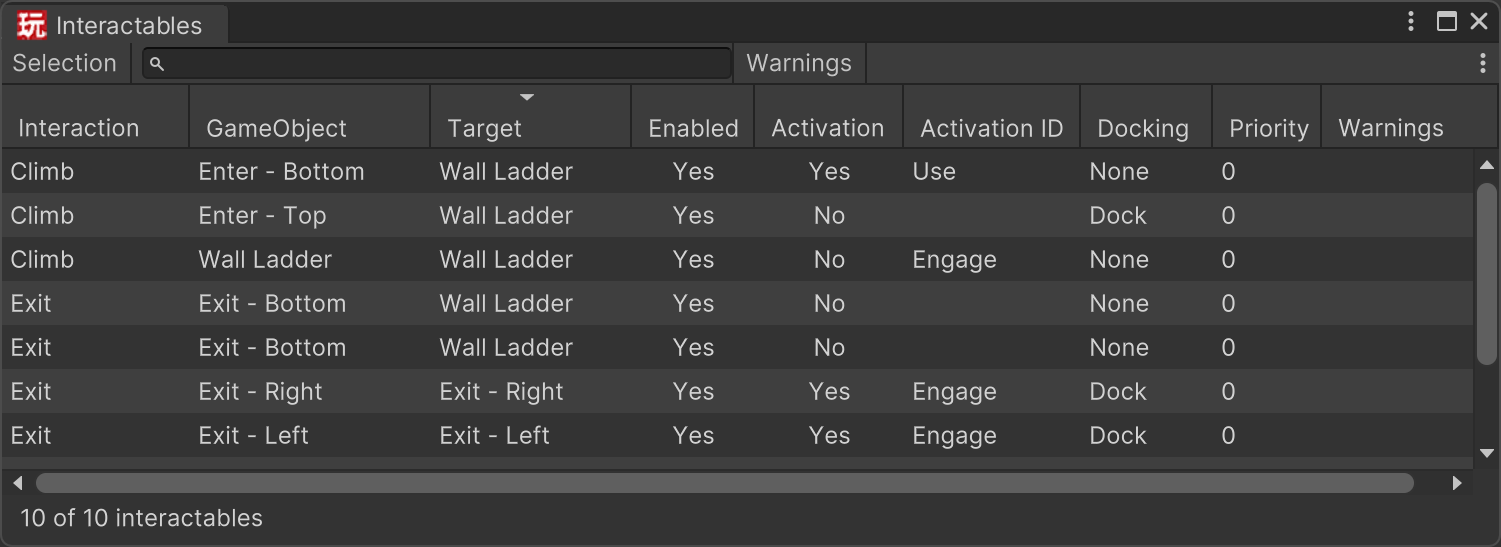
Use it to:
- review all interactables in one place
- search by interaction name, GameObject, scene, target, or activation ID
- quickly jump to an interactable in the Hierarchy and Scene view
- spot setup problems before testing
When To Use It
The browser is especially useful when:
- a scene has many interactables and you want to audit them quickly
- an interaction is not showing up and you want to check whether it exists in the loaded scenes
- you want to find interactables that require activation, docking, or special targets
- you want to identify warning states such as missing colliders or invalid trigger setup
Toolbar
The toolbar helps you narrow the list:
- Selection shows only interactables on the selected GameObjects and their children.
- Search filters by interaction, GameObject name, scene name, target name, hierarchy path, activation ID, and docking mode.
- Warnings shows only interactables that currently have setup warnings.
- Settings opens a small menu with
RefreshandReset Columns.
Use Refresh if you want to manually rebuild the list after scene changes. In normal use, the browser updates automatically when the hierarchy, scene state, selection, undo history, or interactable settings change.
List Columns
Each row represents one Interactable in a loaded scene.
| Column | Description |
|---|---|
Interaction |
The interaction name, such as Use, Climb, or Seat. |
GameObject |
The GameObject that owns the Interactable component. |
Target |
The target GameObject that receives interaction events. If no target is assigned, this falls back to the Interactable's own GameObject. |
Enabled |
Shows whether the Interactable is currently enabled for the system. |
Activation |
Shows whether the Interactable requires explicit activation. |
Activation ID |
The optional activation ID used to match a specific input or request. |
Docking |
Shows the current docking mode. |
Priority |
The Interactable priority used when multiple valid interactables compete. |
Warnings |
Shows setup issues that may stop the interaction from working as expected. |
You can sort the list by clicking the column headers.
Selection Behavior
Selecting a row selects and pings that GameObject in Unity.
If you choose a row again, such as with a double-click, the browser also frames the selected object in the Scene view. This makes it much faster to inspect interactables placed around a large level.
The browser also tracks the current Unity selection. If you select an interactable object in the Hierarchy, the matching row becomes selected in the browser when it is visible in the filtered list.
Warnings
The Warnings column helps catch common setup problems. The browser currently reports warnings for:
- no resolvable collider
- using
Colliderdistance mode without a resolvable collider - enabling
Require Raycast Hitwithout a resolvable collider - assigning an
Inside Triggerthat is not actually marked as a trigger - using an unsupported collider type for
Inside Trigger
If an interaction is not becoming available at runtime, this browser is a good place to check first.
Tips
- Open the browser and enable Warnings to find broken setups quickly.
- Search for an interaction name like
UseorClimbto audit one interaction type across the scene. - Turn on Selection when you want to inspect only the interactables under a character, prefab root, or environment section.
- Sort by Priority or Activation ID when comparing similar interactables.