Addons Browser
PlayMaker → Addons
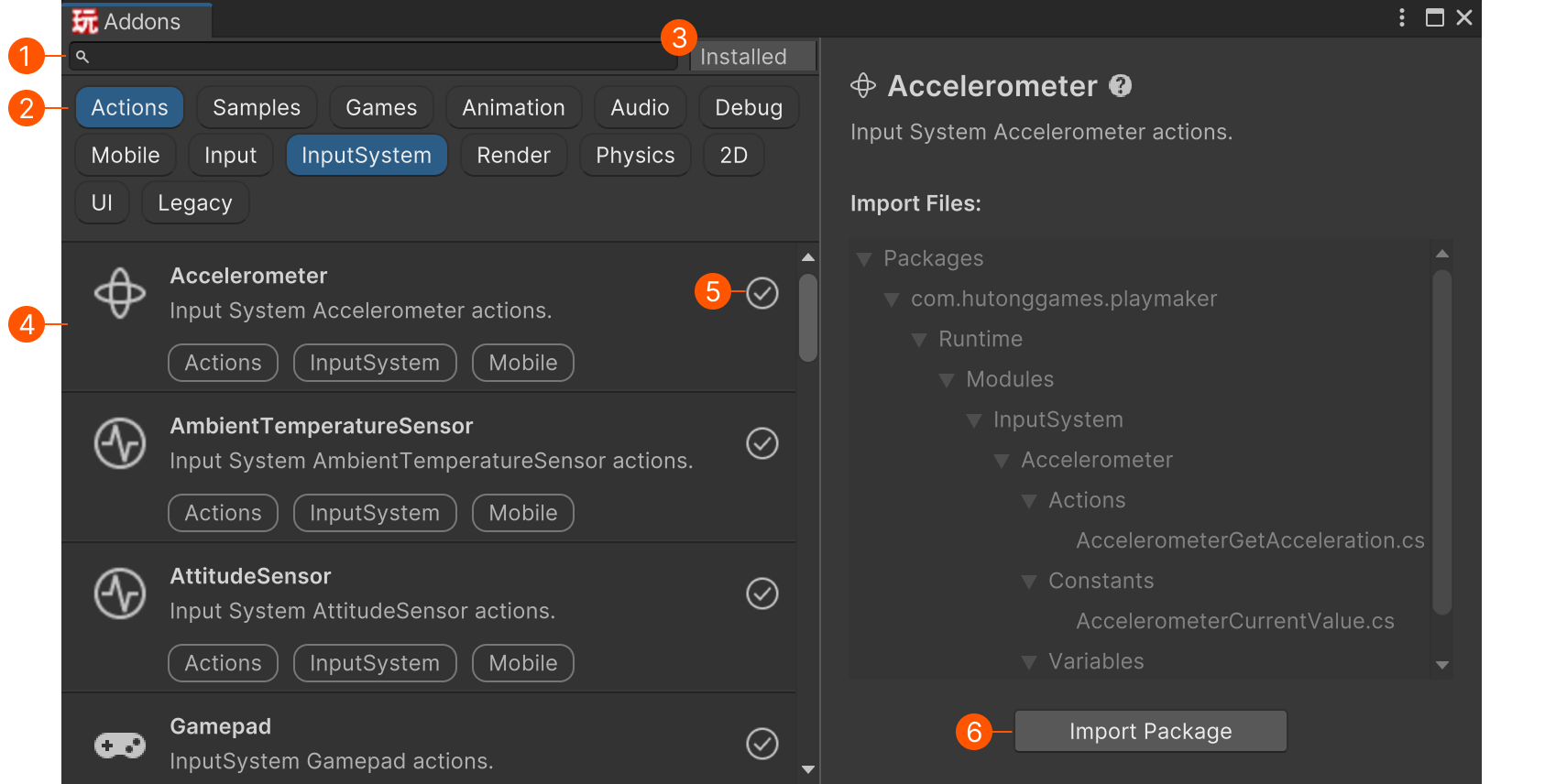
Use the Addons Browser to discover, preview, and import addons and samples:
| # | Description |
|---|---|
| Search addons by Name, Description, and Filenames. | |
| Filter the search by tags. The tags are additive: Games + Physics + 2D shows only game samples that use 2D physics. |
|
| Show/Hide addons that are already installed. | |
| All addons that match the search. | |
| The status of the addon. | |
| Import the addon. |
Addon Status
The icon next the addon indicates its status:
| Icon | Status |
|---|---|
| Not installed. | |
| Installed. | |
| Installed but update is available. Re-import to update the addon. |
|
| Installed but changed locally. Re-import to revert local changes. |
Importing Addons
Select an addon to preview its contents and import the Unity package.
Code addons are imported to: Packages/PlayMaker/
Samples are imported to: Assets/Samples/PlayMaker/
Dependencies
Some addons require other addons.
Those addons are automatically imported first.
Some addons also require a specific package to be installed.
Install that package in the Package Manager before importing the addon.
Sample Scenes
Many samples include global events and variables.
To avoid cluttering your project, you may want to:
- Create a separate project just for exploring samples.
- Import selectively and delete unneeded elements after review.
See Sample Scenes for more information.